

Centreon is an IT infrastructure monitoring platform. When integrated with Astry, host and service problems detected by Centreon automatically open incidents on Astry, and you benefit from Astry's alerting (SMS, calls, ...) and on-call management features.
The integration relies on two Centreon notification commands, which call the integration URL with one of your keys. No additional module needs to be installed on your Centreon server.
Configuration
Before starting, enable the integration and generate a key from the Centreon integration page (Organization tab, then Incoming Integrations): you will need it from the first step.
1. Create the notification commands
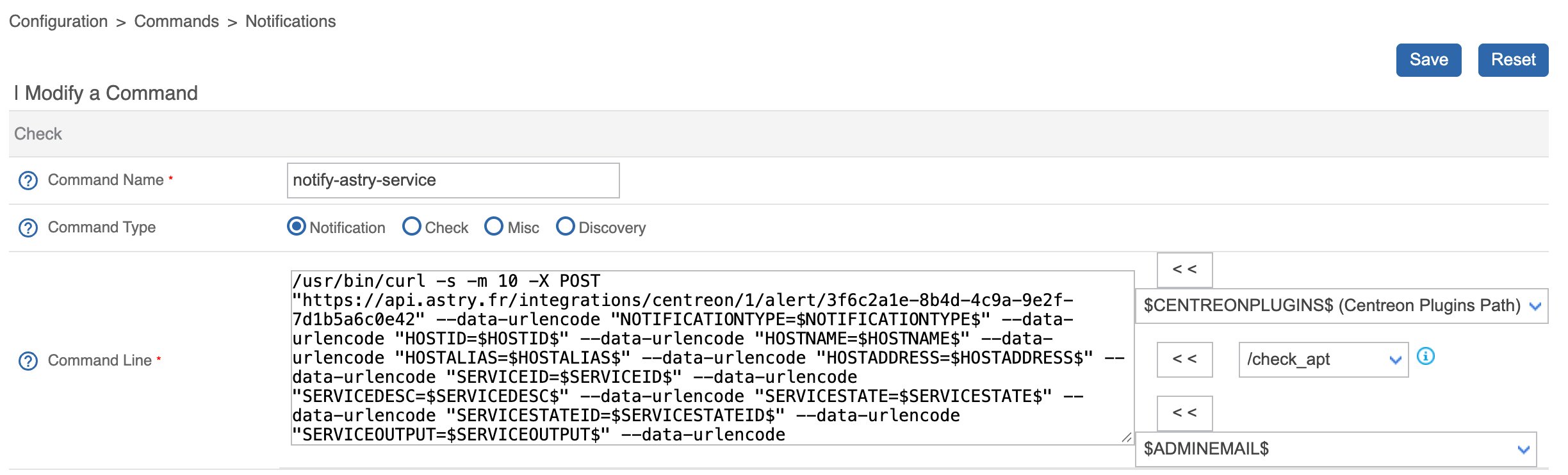
In Configuration > Commands > Notifications, click Add and create a command named notify-astry-service. Select Notification as Command Type (Centreon may pre-select Check), then paste the following command line, replacing YOUR_KEY with one of your keys, and click Save:
/usr/bin/curl -s -m 10 -X POST "https://api.astry.fr/integrations/centreon/1/alert/YOUR_KEY" --data-urlencode "NOTIFICATIONTYPE=$NOTIFICATIONTYPE$" --data-urlencode "HOSTID=$HOSTID$" --data-urlencode "HOSTNAME=$HOSTNAME$" --data-urlencode "HOSTALIAS=$HOSTALIAS$" --data-urlencode "HOSTADDRESS=$HOSTADDRESS$" --data-urlencode "SERVICEID=$SERVICEID$" --data-urlencode "SERVICEDESC=$SERVICEDESC$" --data-urlencode "SERVICESTATE=$SERVICESTATE$" --data-urlencode "SERVICESTATEID=$SERVICESTATEID$" --data-urlencode "SERVICEOUTPUT=$SERVICEOUTPUT$" --data-urlencode "LONGSERVICEOUTPUT=$LONGSERVICEOUTPUT$" --data-urlencode "LONGDATETIME=$LONGDATETIME$"
Then create a notify-astry-host command the same way, with the following command line (again replacing YOUR_KEY):
/usr/bin/curl -s -m 10 -X POST "https://api.astry.fr/integrations/centreon/1/alert/YOUR_KEY" --data-urlencode "NOTIFICATIONTYPE=$NOTIFICATIONTYPE$" --data-urlencode "HOSTID=$HOSTID$" --data-urlencode "HOSTNAME=$HOSTNAME$" --data-urlencode "HOSTALIAS=$HOSTALIAS$" --data-urlencode "HOSTADDRESS=$HOSTADDRESS$" --data-urlencode "HOSTSTATE=$HOSTSTATE$" --data-urlencode "HOSTSTATEID=$HOSTSTATEID$" --data-urlencode "HOSTOUTPUT=$HOSTOUTPUT$" --data-urlencode "LONGDATETIME=$LONGDATETIME$"
The integration page displays these commands with the URL of your environment and a button to copy them.
2. Create an Astry contact
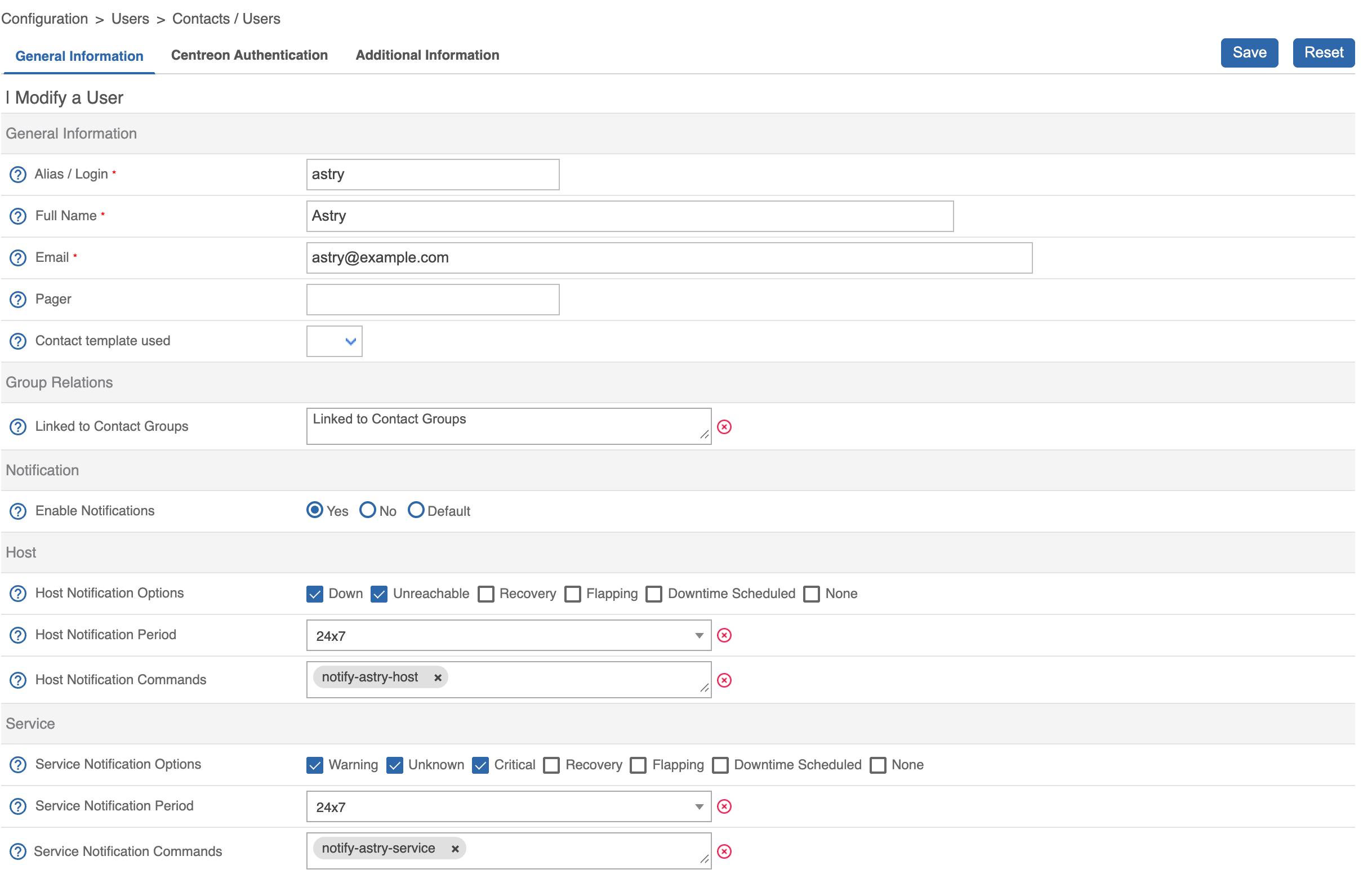
In Configuration > Users > Contacts / Users, click Add and create a contact, for example with astry as alias and Astry as full name (Centreon requires an email address, which is not used by the integration). In the Notification, Host and Service sections:
- set Enable Notifications to Yes;
- choose the
24x7notification periods; - pick
notify-astry-hostas host notification command andnotify-astry-serviceas service notification command; - check the notification options matching your needs, for example Down and Unreachable for hosts, Warning, Unknown and Critical for services (Recovery is not needed, recoveries being ignored by Astry).
Click Save.
3. Add a test host
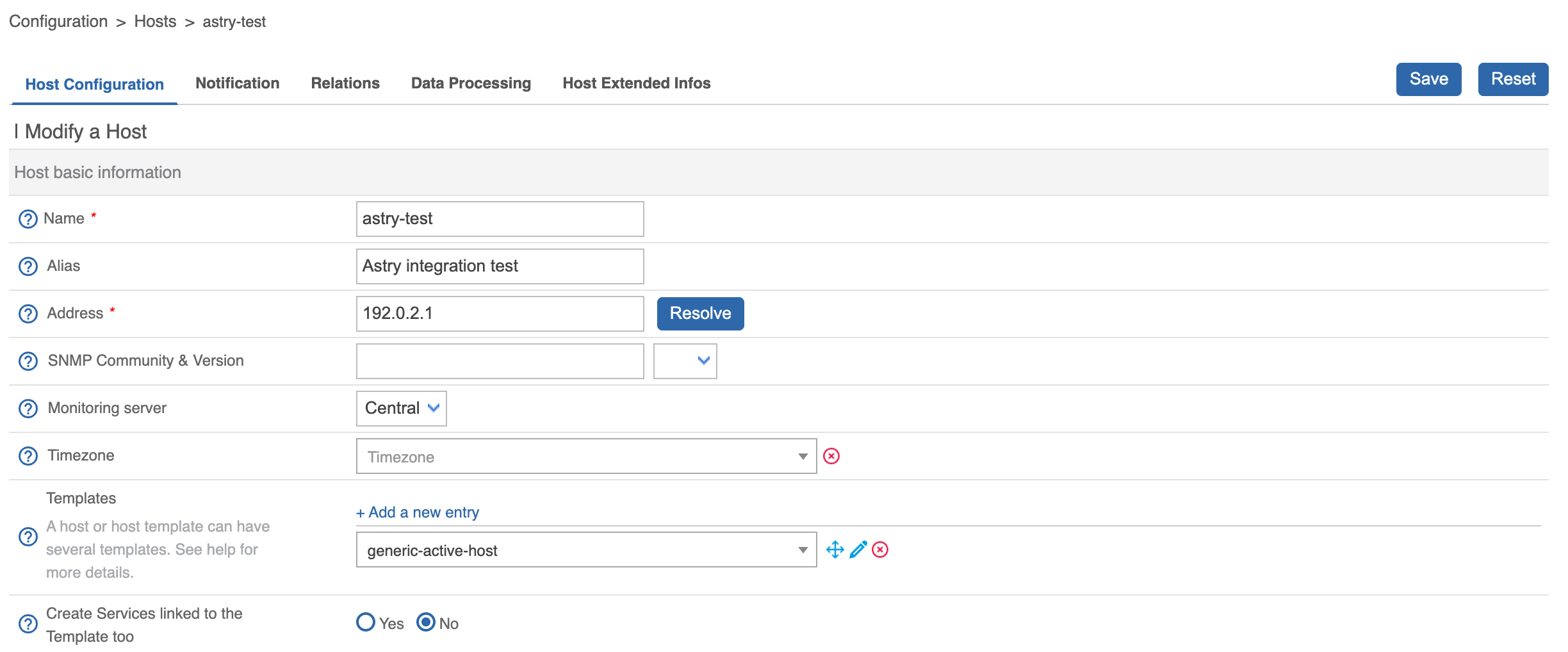
To validate the integration end-to-end, create a test host in Configuration > Hosts > Hosts (Add): name it astry-test, use 192.0.2.1 as address (an address reserved for documentation that never answers, so the host will be detected as down) and a host template that pings the host, for example generic-active-host.
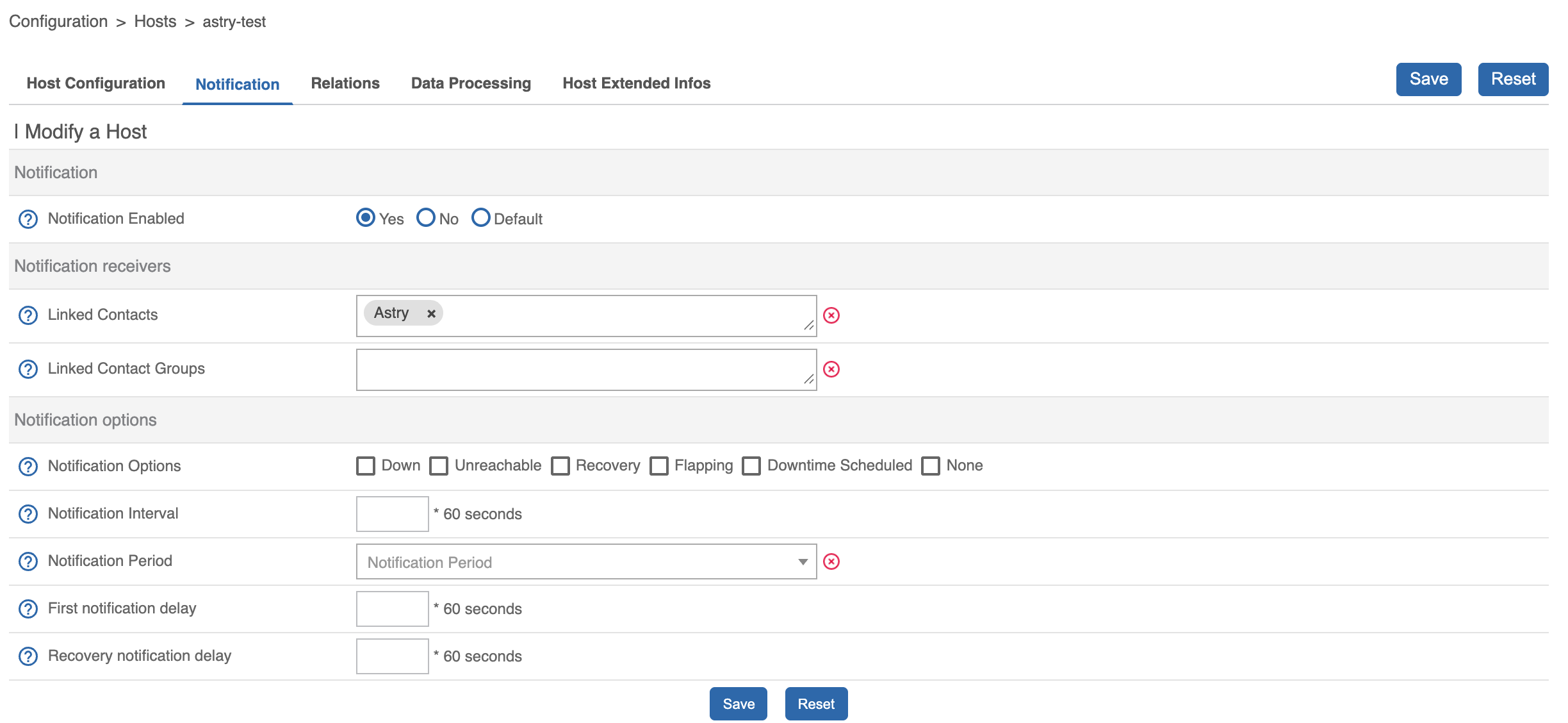
In the Notification tab, set Notification Enabled to Yes and add the Astry contact to Linked Contacts, then click Save.
For your real hosts and services, proceed the same way: add the Astry contact (directly or through a contact group) to the hosts and services that should raise incidents on Astry, making sure their notifications are enabled.
4. Export the configuration
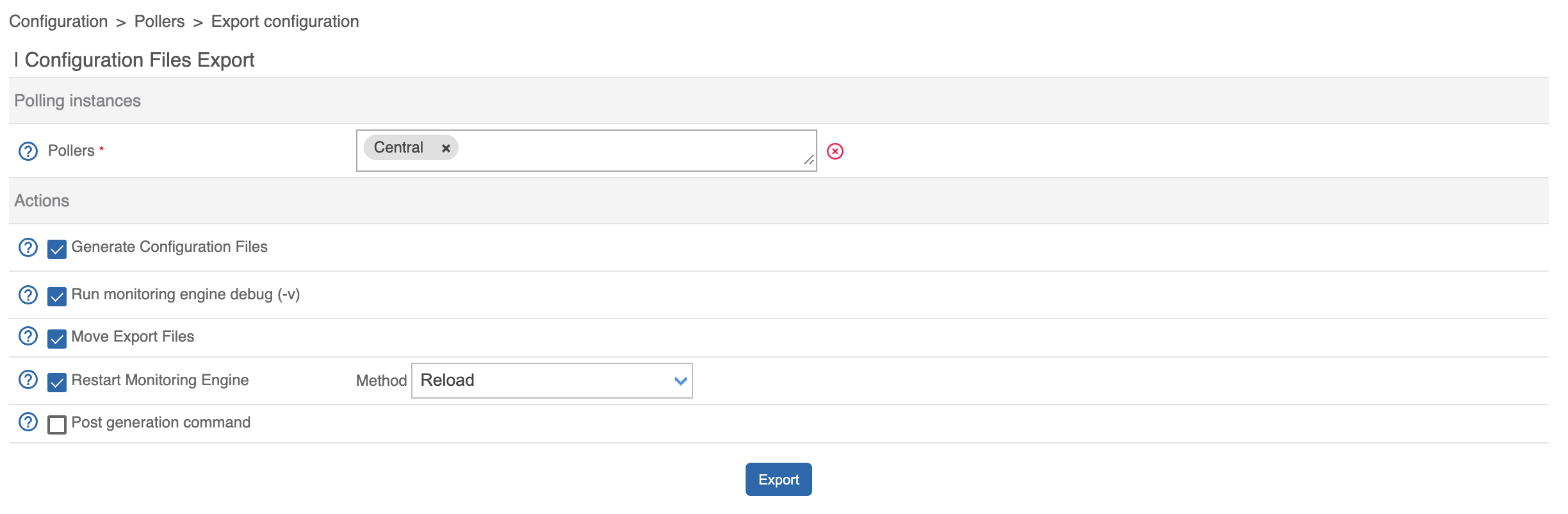
In Configuration > Pollers > Export configuration, select your poller(s), check Generate Configuration Files, Move Export Files and Restart Monitoring Engine, then click Export.
5. Check that an incident opens on Astry
Within a minute or two, Centreon detects the astry-test host as DOWN (visible in Monitoring > Resources Status) and sends a notification: an incident titled astry-test opens on Astry, with the priority configured for DOWN. Once checked, resolve the incident on Astry and delete the test host in Centreon (then export the configuration again).

No incident? From your Centreon server (or the poller sending notifications), check that Astry is reachable and that your key is valid:
curl -X POST "https://api.astry.fr/integrations/centreon/1/alert/YOUR_KEY"
The answer should be Connection test has succeeded.
How notifications are handled
- PROBLEM: opens an incident. If an incident is already open for the same host or service, the notification is added to its alerts (no duplicate is created).
- Other notification types (RECOVERY, acknowledgement, flapping, downtime) are ignored: an incident remains open until your team resolves it, even if Centreon reports a return to normal.
Field mapping
| Incident field | Value |
|---|---|
| Title | SERVICEDESC (HOSTNAME) for a service, HOSTNAME for a host |
| Description | SERVICEOUTPUT (and LONGSERVICEOUTPUT) or HOSTOUTPUT |
| correlationId (de-duplication) | Centreon host and service identifiers (HOSTID, SERVICEID) |
Priorities
The incident priority depends on the state reported by Centreon. It can be configured by the Owners of the organization from the integration page (Priorities section). Default values:
| Centreon state | Default Astry priority |
|---|---|
CRITICAL (service) | 1 |
WARNING (service) | 3 |
UNKNOWN (service) | 4 |
DOWN (host) | 1 |
UNREACHABLE (host) | 2 |
Network
No inbound access to your Centreon server is needed: notifications are sent by Centreon to Astry. Only outbound HTTPS (port 443) to api.astry.fr is required from the servers sending notifications (the central server, and pollers if they send notifications).
Keys and rotation
You can have up to 5 keys per integration. To rotate a key without interruption (for example after a compromise): generate a new key, update both notification commands with it, export the configuration, then revoke the old key.