

Summary
Here, we'll set up your incident management system together. This guided setup will walk you through everything you need to get started.
What we'll cover:
- Creating your first team and its on-call schedule
- Adding a routing rule
Duration: 5 minutes.
Note: When you sign up, the Astry welcome page asks you for the name of your organization and of a default team, to which all incidents will be automatically routed. If you did so, your first team and its routing rule already exist: this guide then helps you understand how they are configured, or create additional teams.
Creating your first team and its on-call schedule
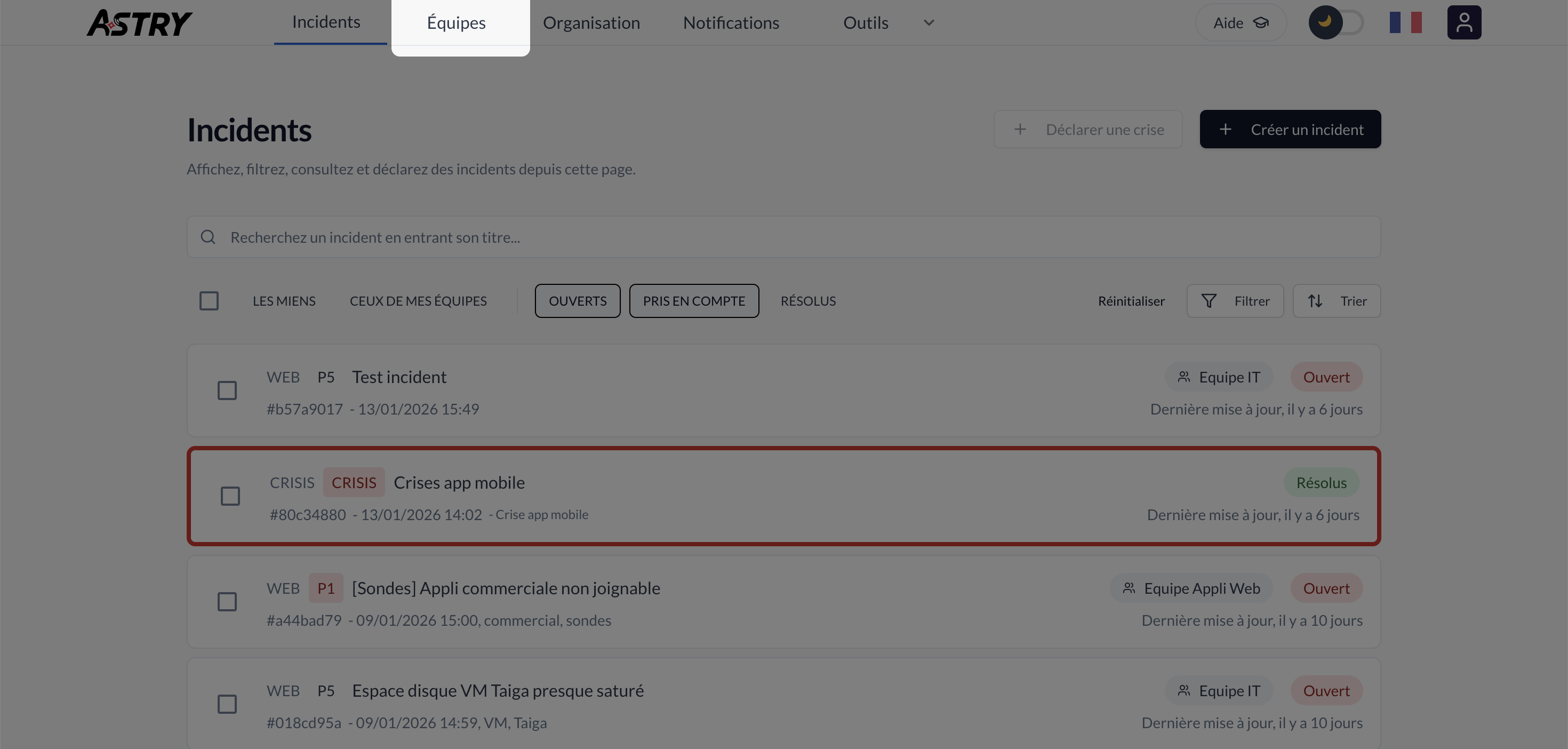
From any page in your Astry workspace, you can open the Teams tab.
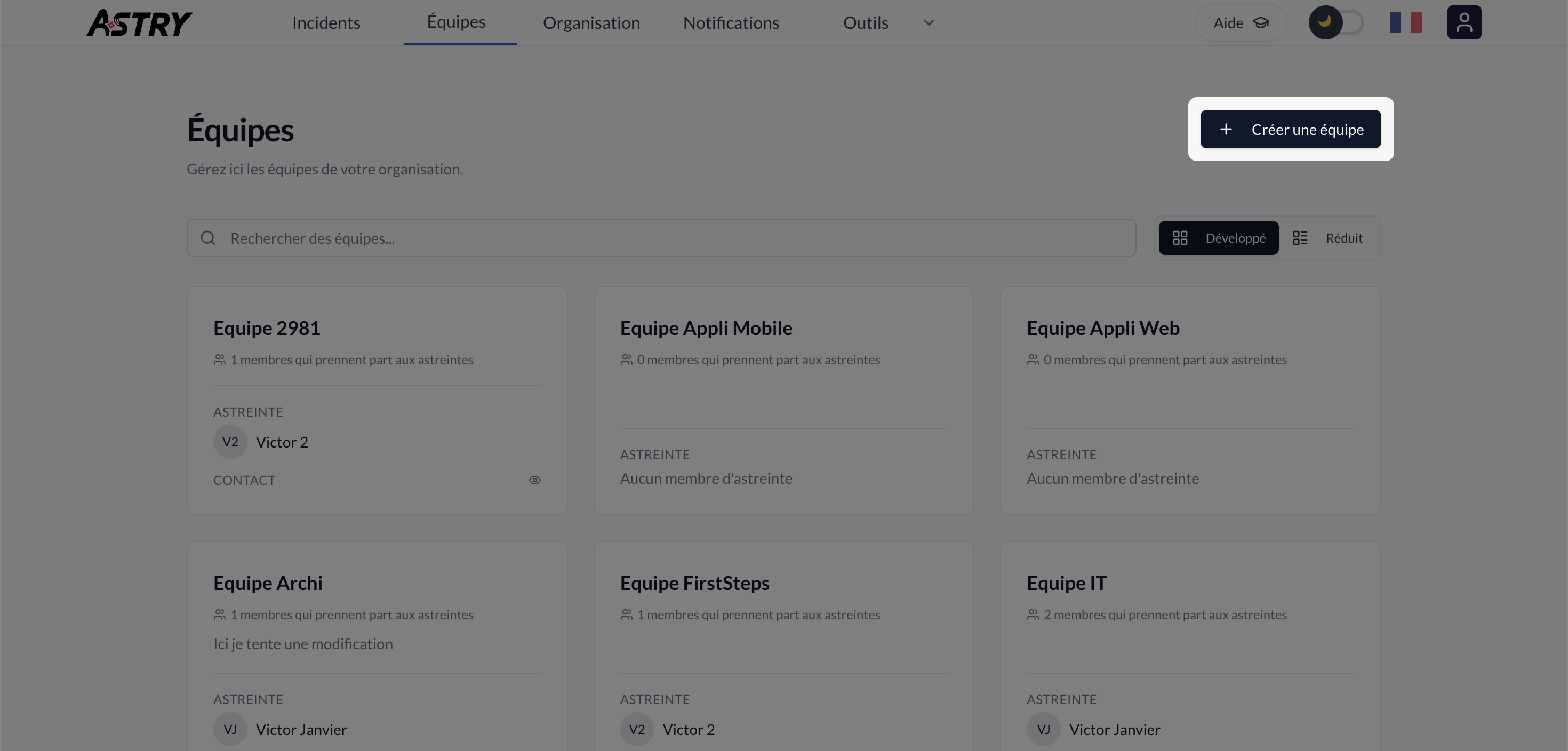
Then click the Create a team button:
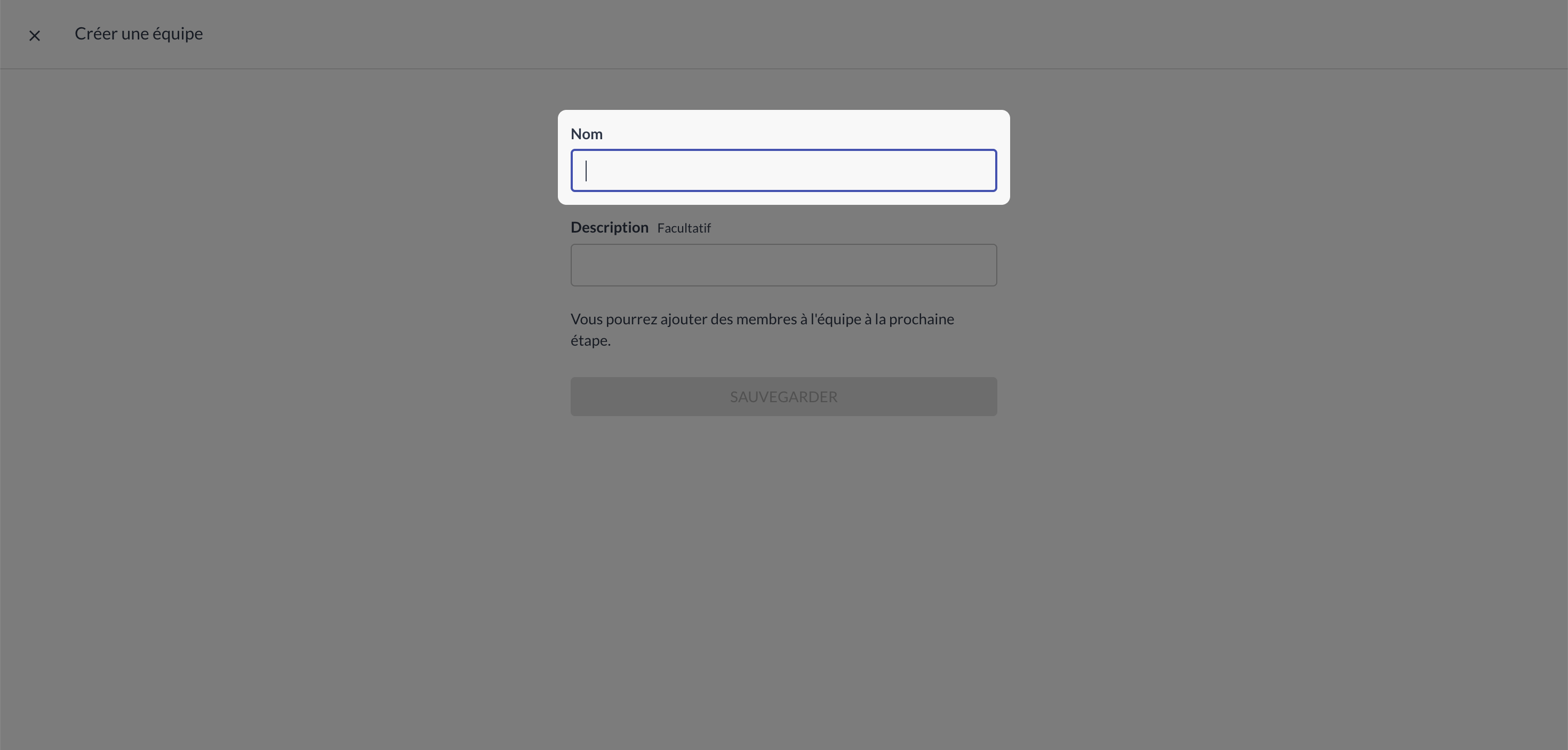
Enter your team's name.
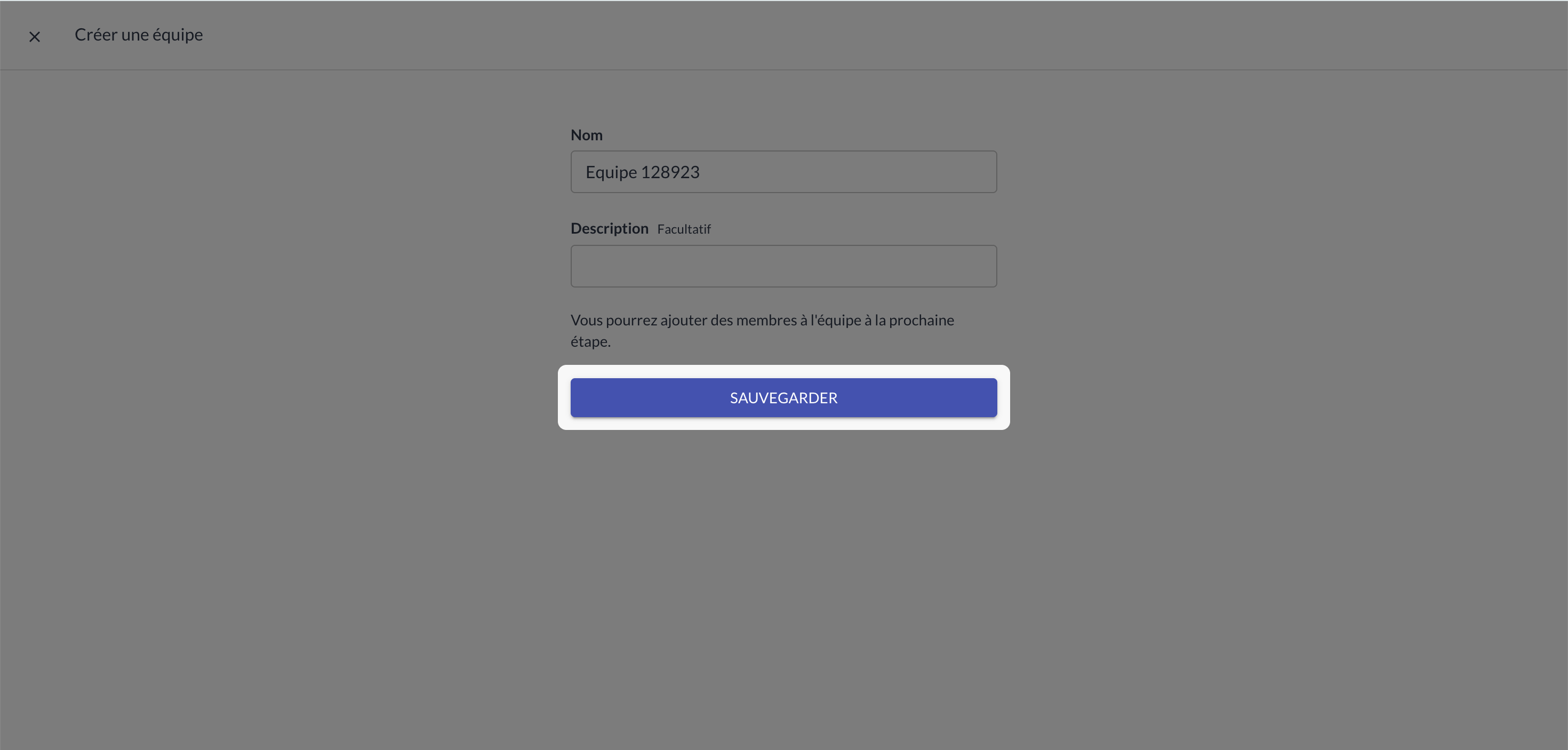
Then click Save:
Now add a first member to your team by clicking the Add a member button:
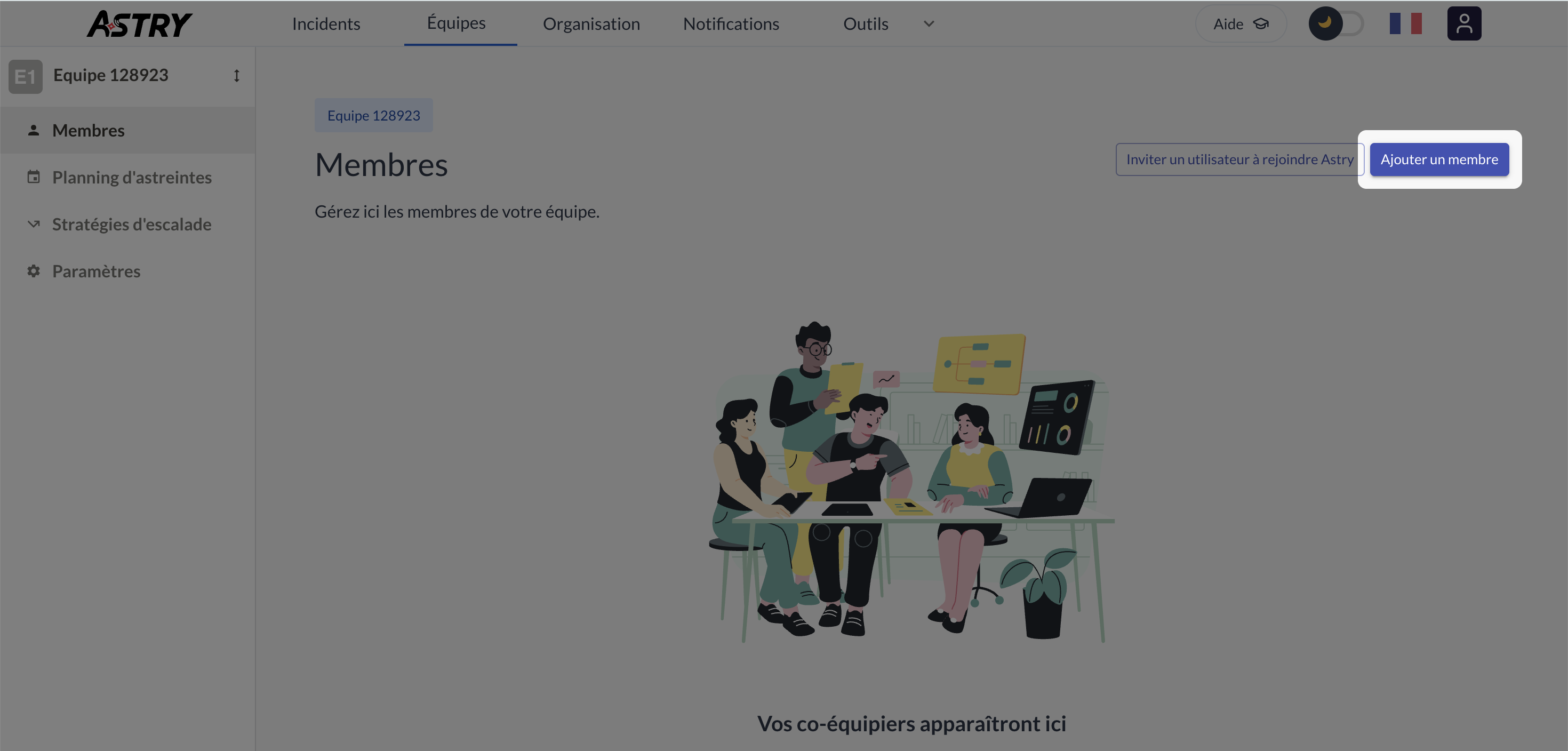
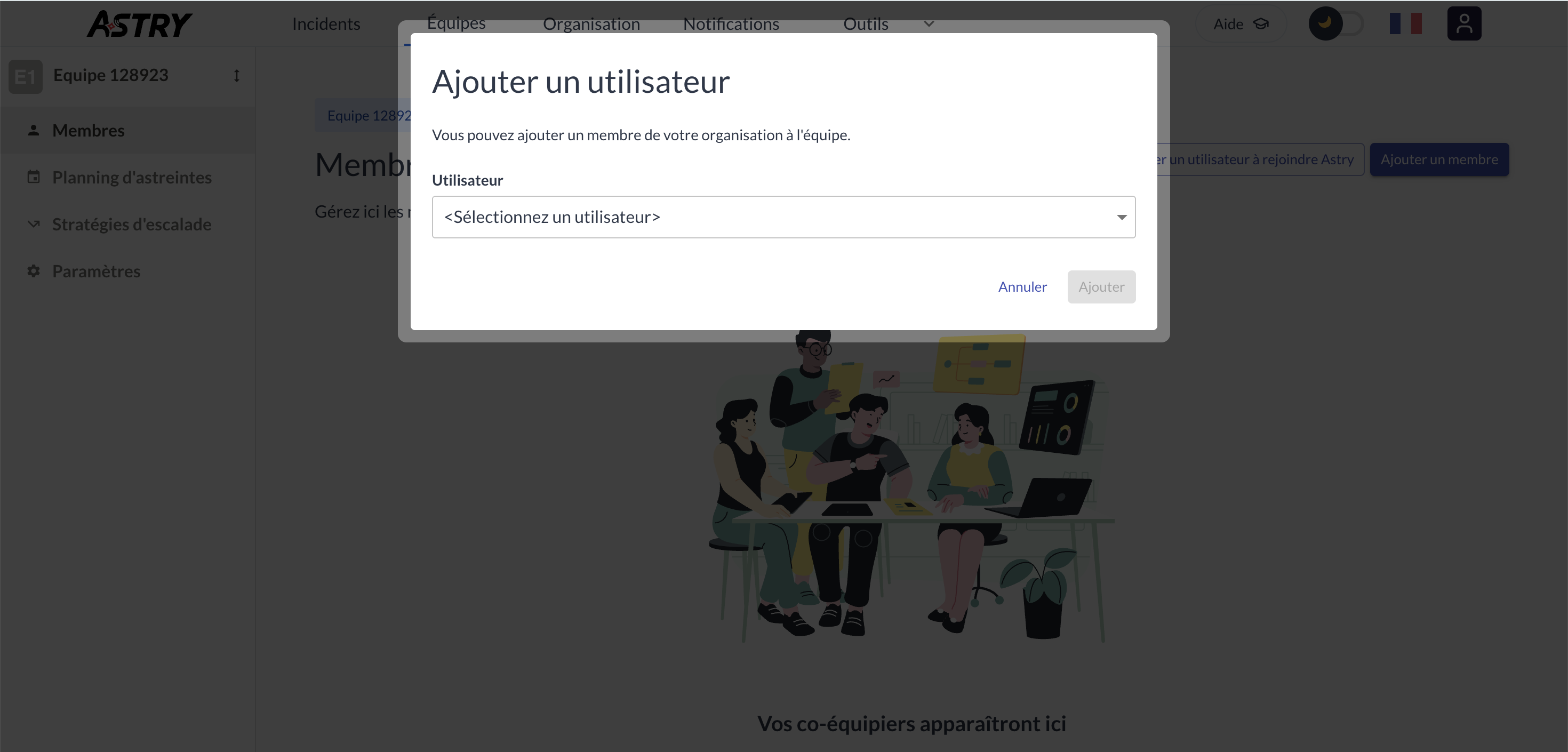
Select the user (using the dropdown menu) you want to add to the team. Then click Add:
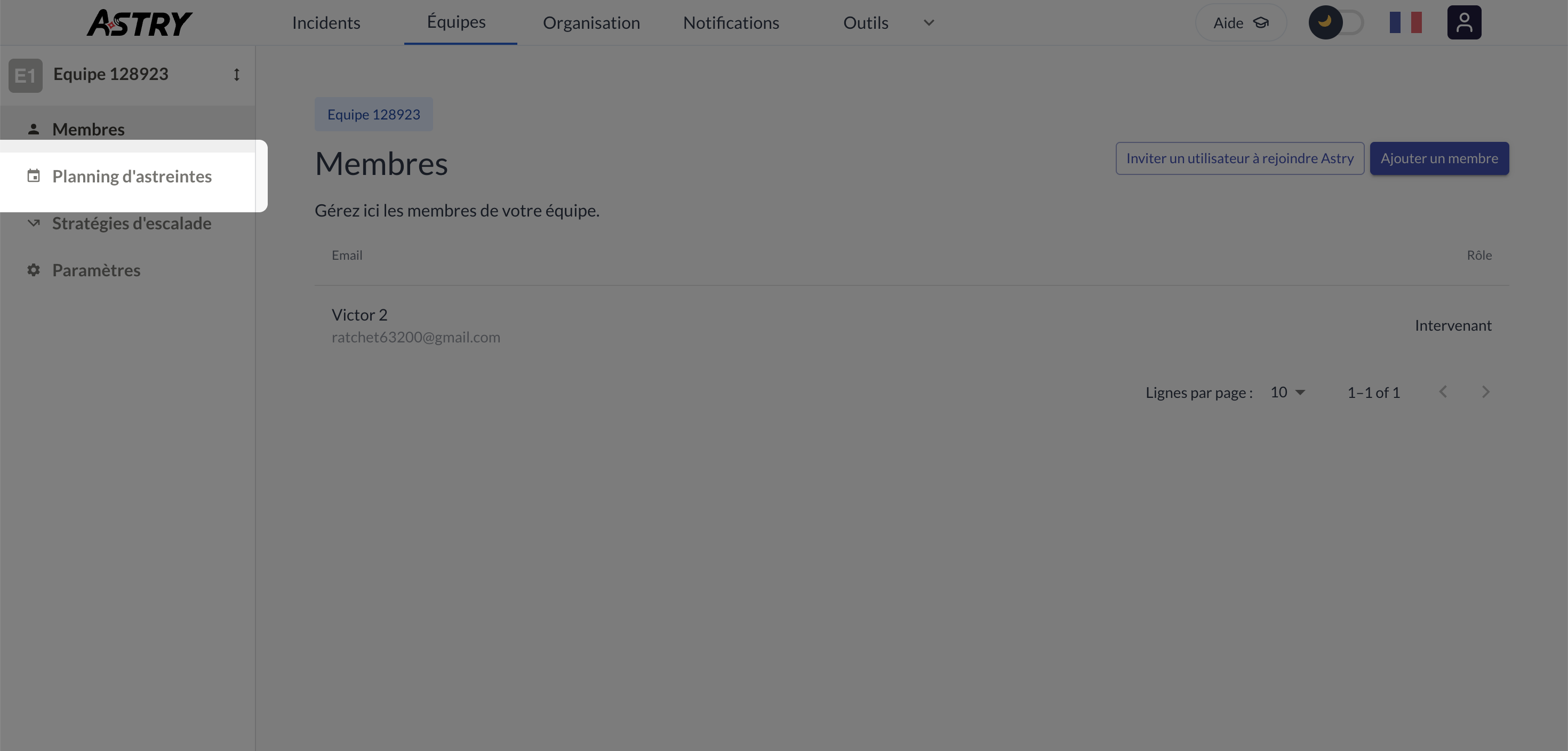
Then click the On-call schedules menu to configure it.
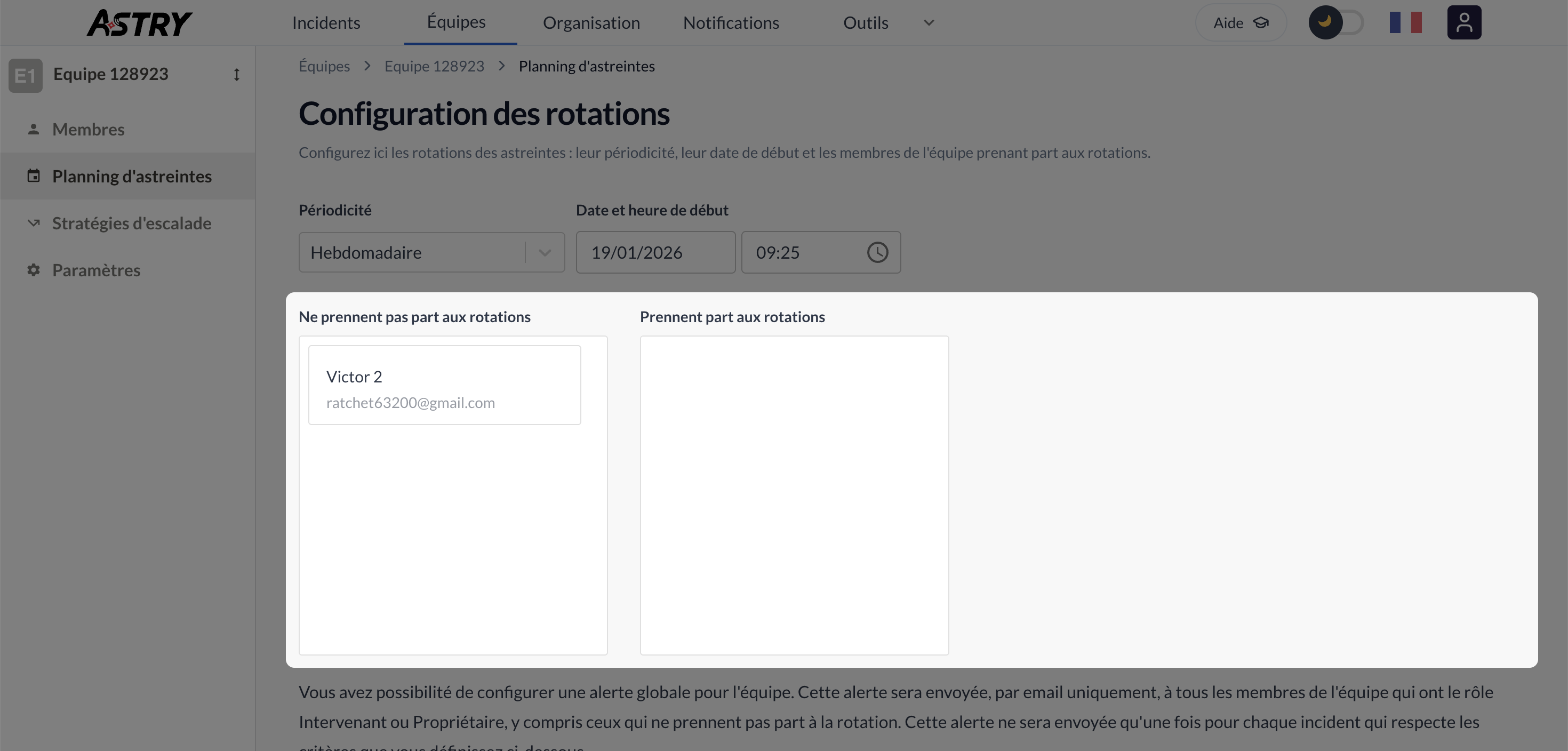
Here you can set the on-call periodicity (daily, weekly, monthly). Choose whatever fits your team and your needs best.
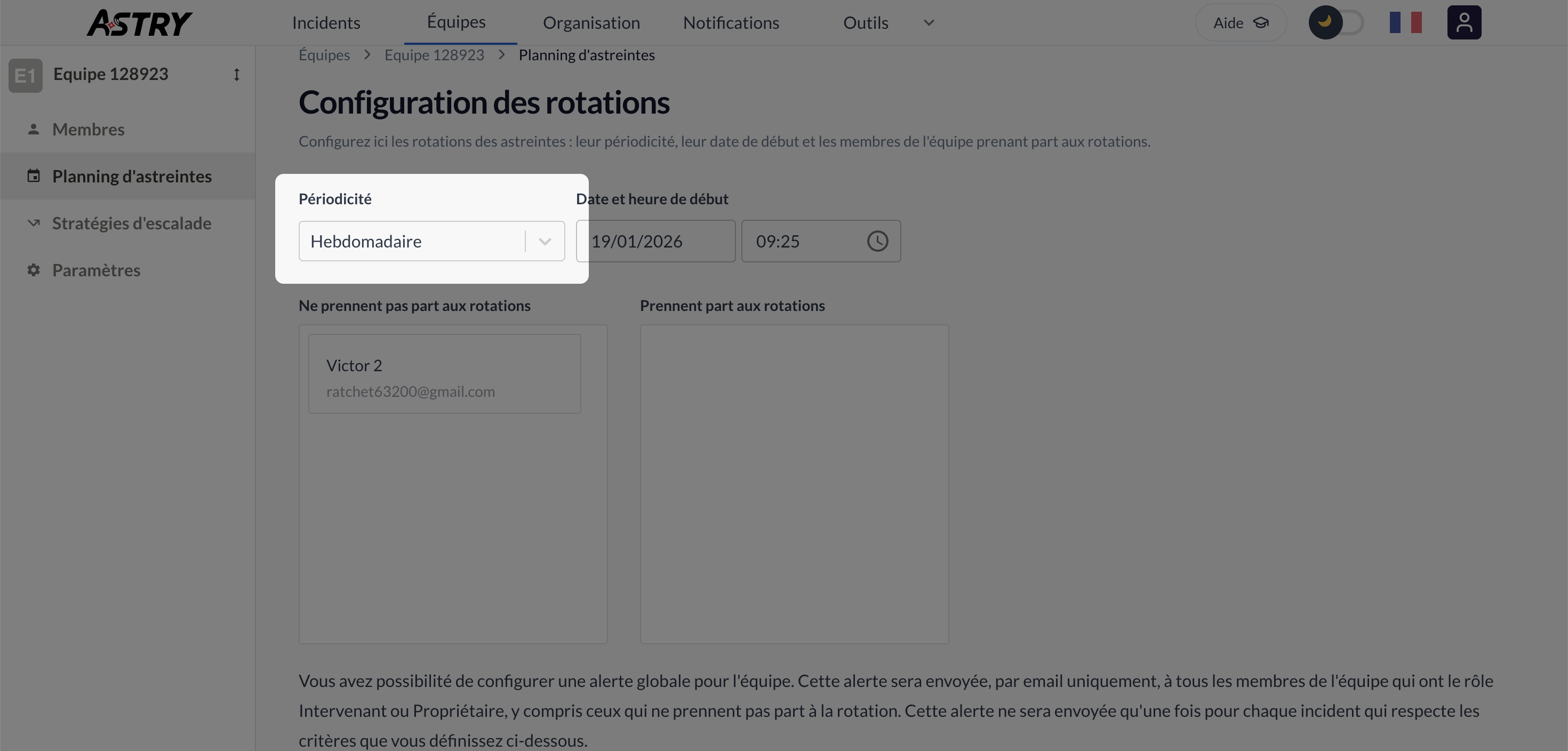
Next, you can define which team members will be on-call. To do this, drag and drop members into the "Take part in rotations" column.
Adding a routing rule
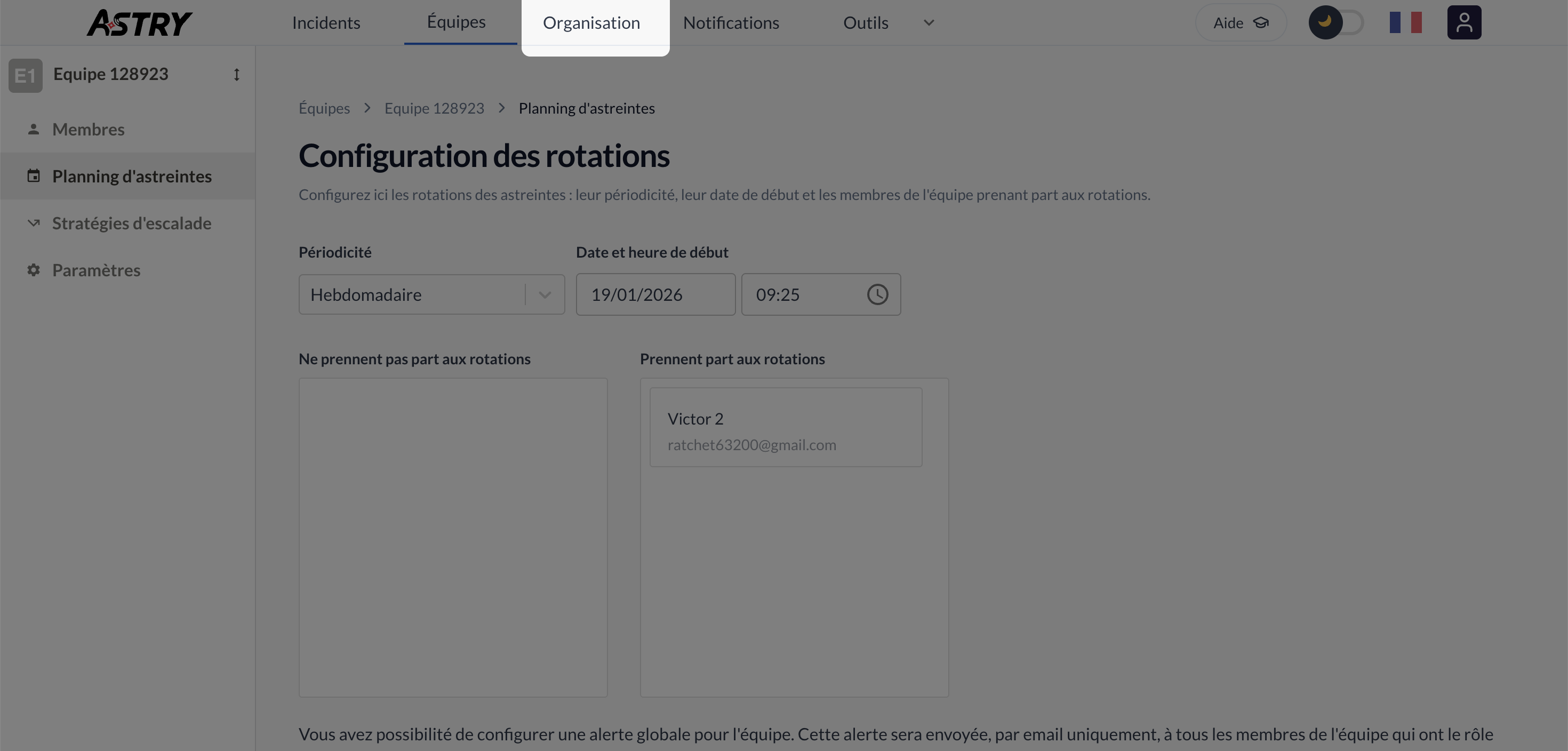
Finally, we'll configure a new routing rule. This will be applied by default to all incidents (we won't specify any criteria in this rule), which will route all of them directly to the team you just created. To do this, navigate to the Organization tab.
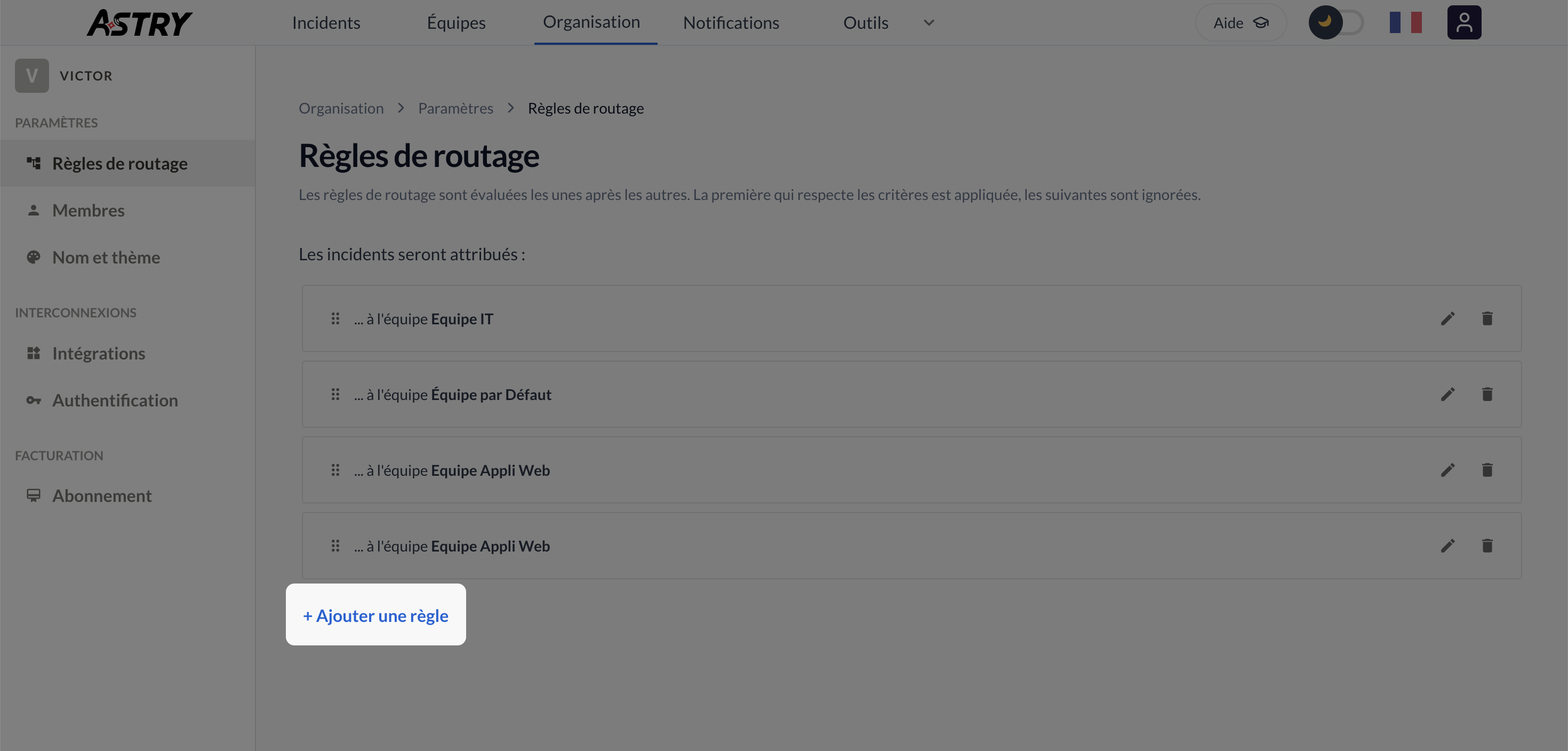
Then click the Add a rule button:
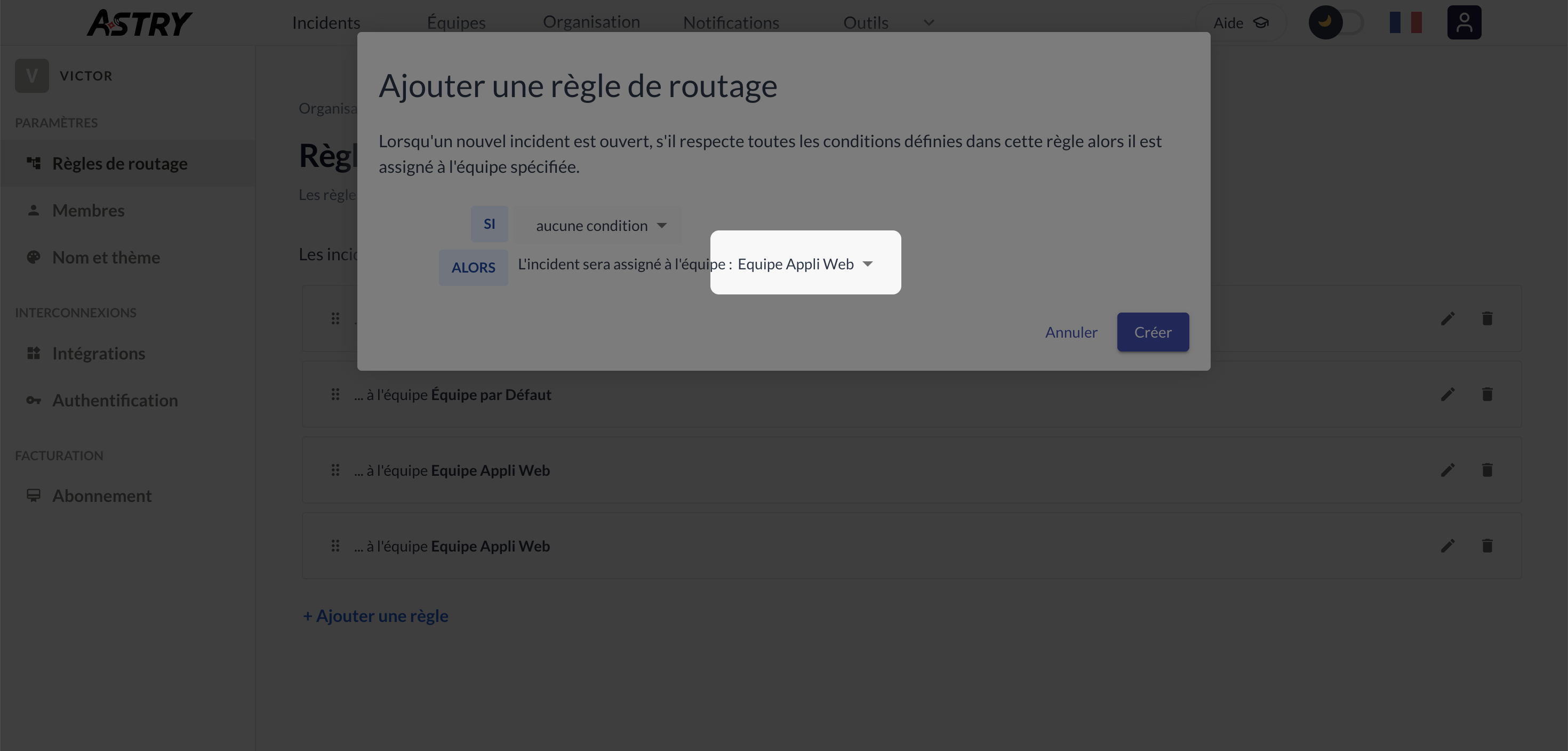
As mentioned above, here we choose to configure a default rule, i.e. a rule that will be applied to all incidents. To do this, select the team and click Create:
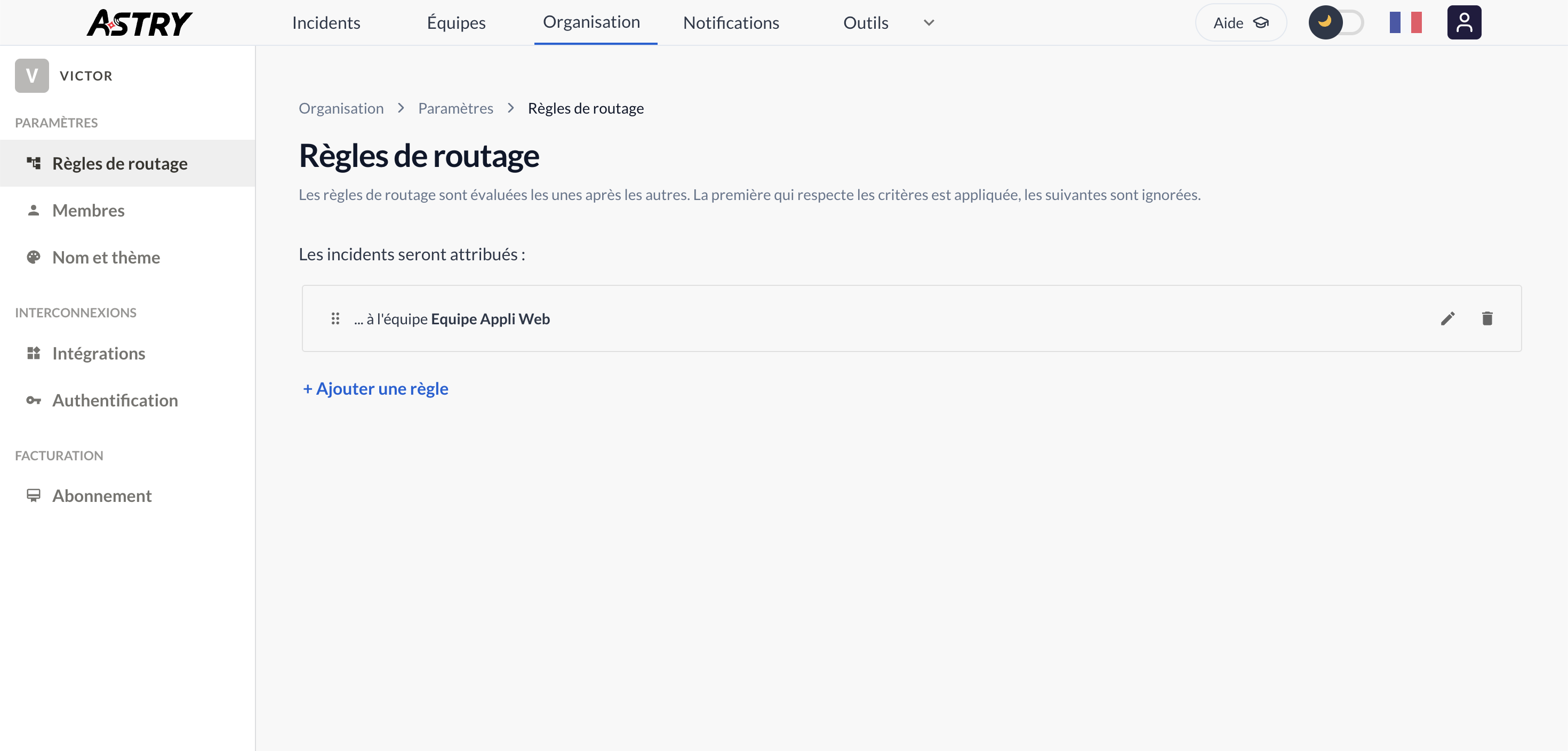
And there you go, your first routing rule is configured.
You can now start using Astry by connecting your preferred integration.