

On this page, we'll go through the process of setting up a Teams Webhook so that Astry can notify you.
- Creating a Teams Webhook
- Configuring Astry with the Teams Webhook
- Testing the configuration
- Body of the message Astry sends to Teams
Creating a Teams Webhook
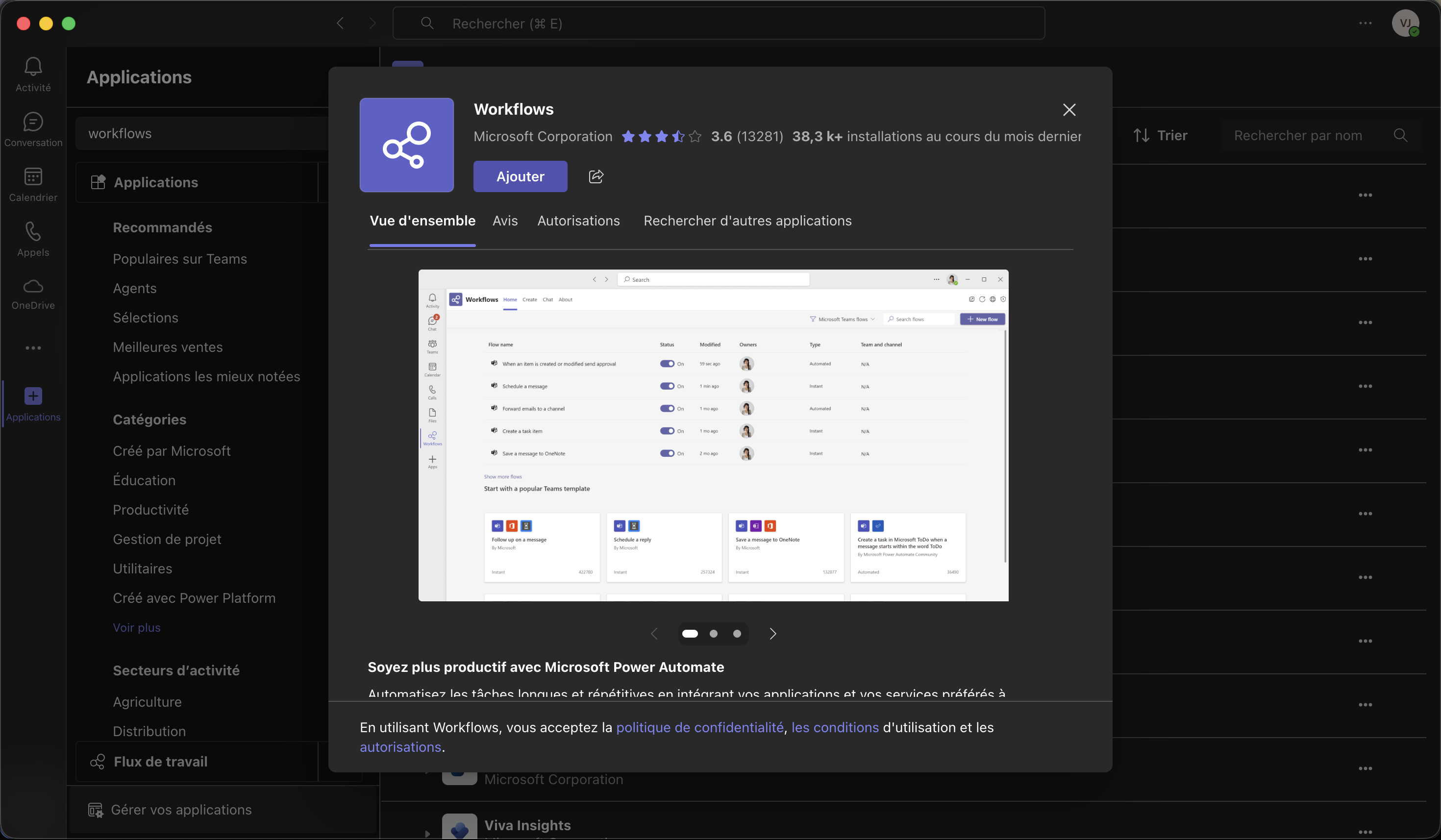
First, you need to add the Workflow app to your Teams. To do this, go to the "Apps" submenu, search for "Workflows", then click Add.
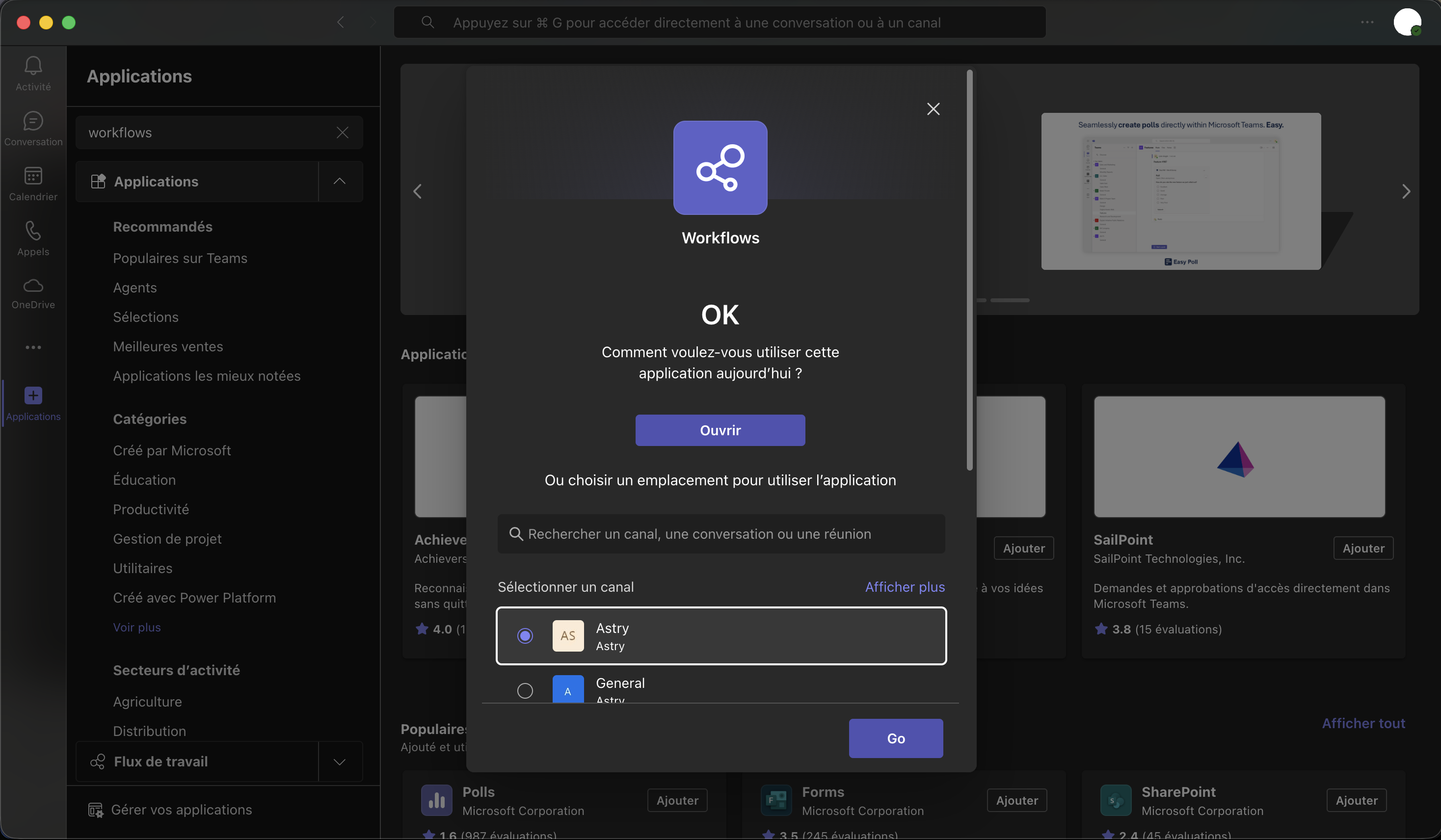
A popup asks you to choose which channel/conversation you want to receive notifications in. Select the desired channel/conversation and click Go.
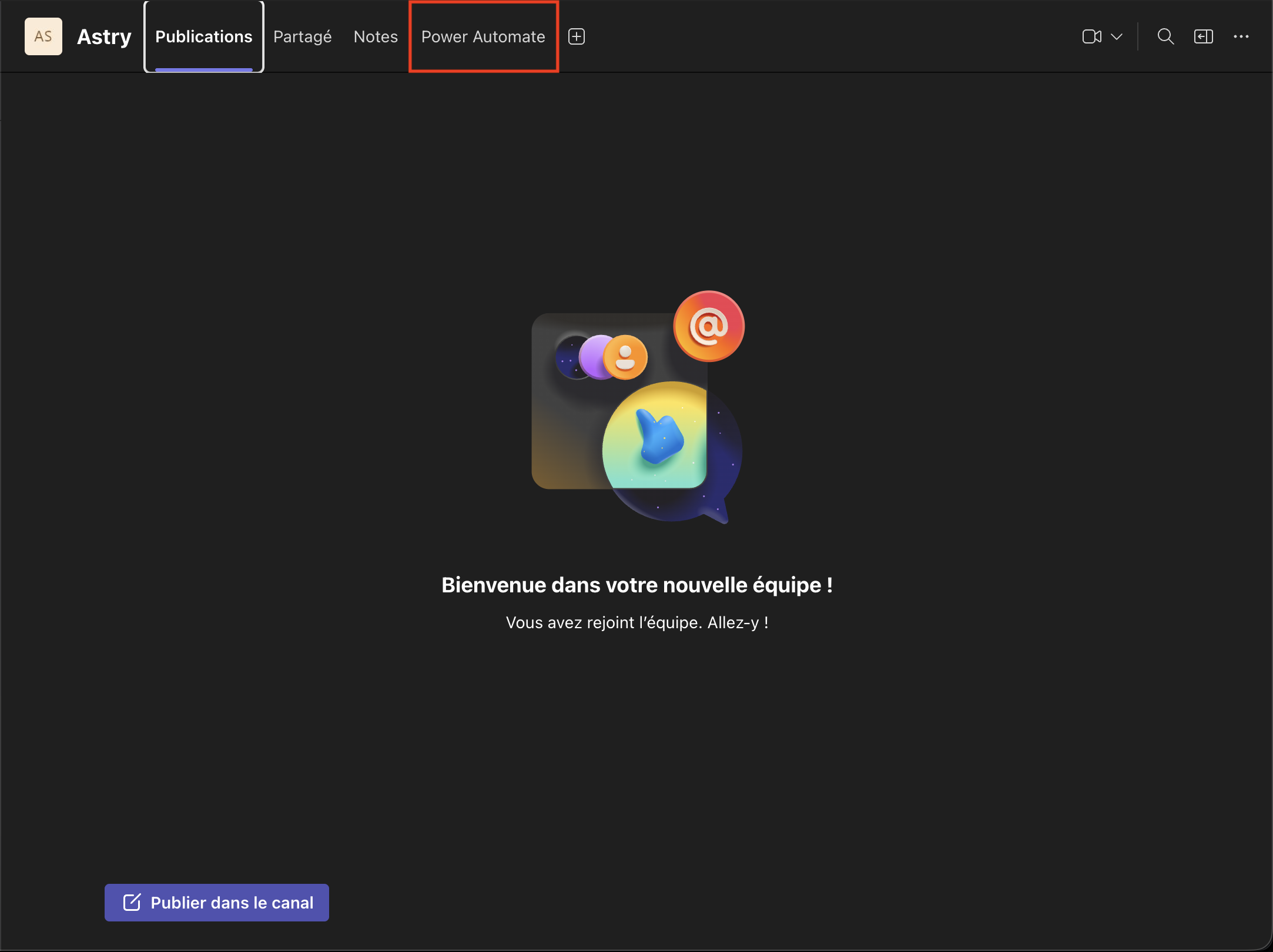
Go to the channel/conversation you just selected and click the Power Automate menu.
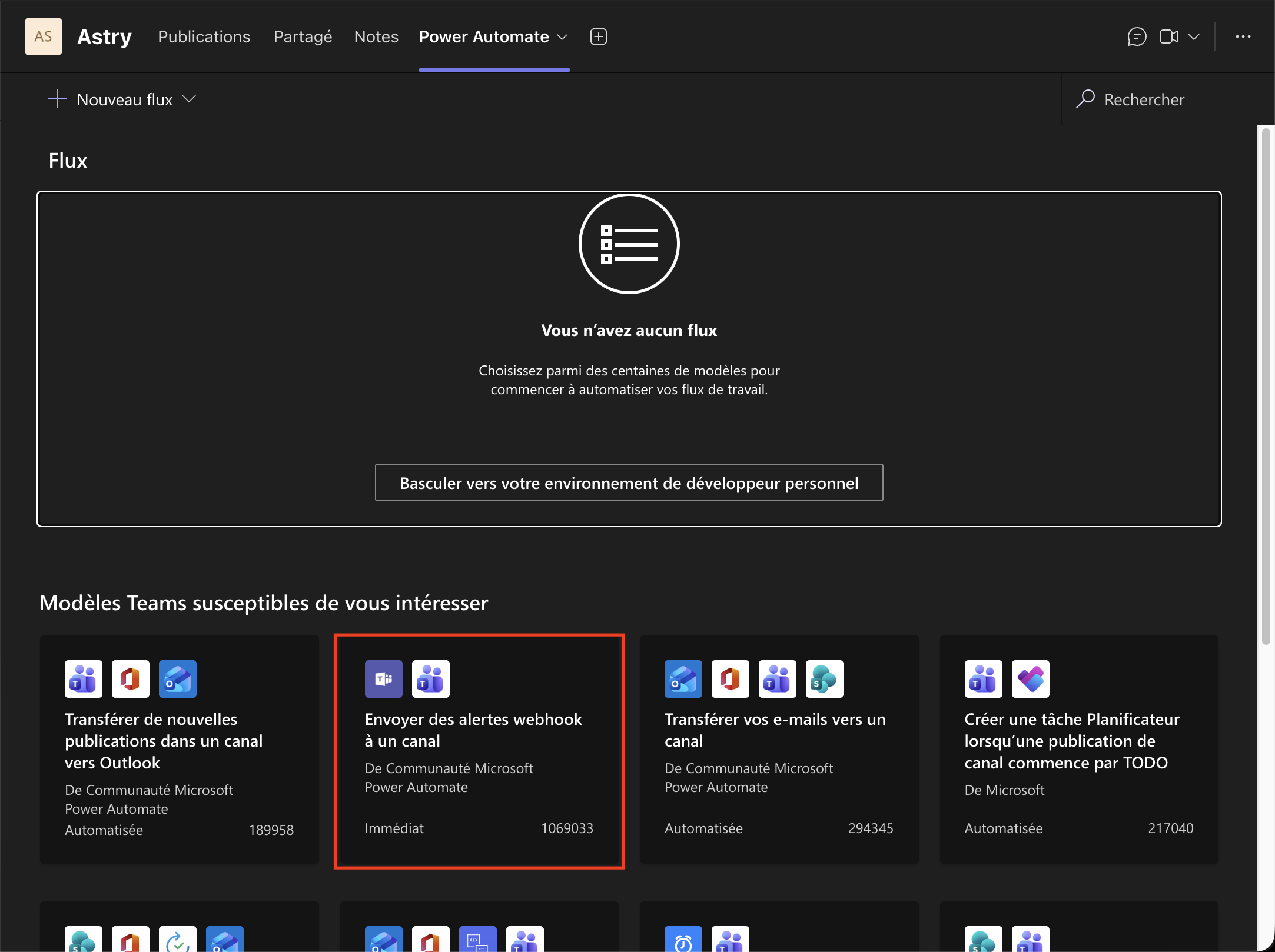
Select the Post to a channel when a webhook request is received template.
Then click Continue.
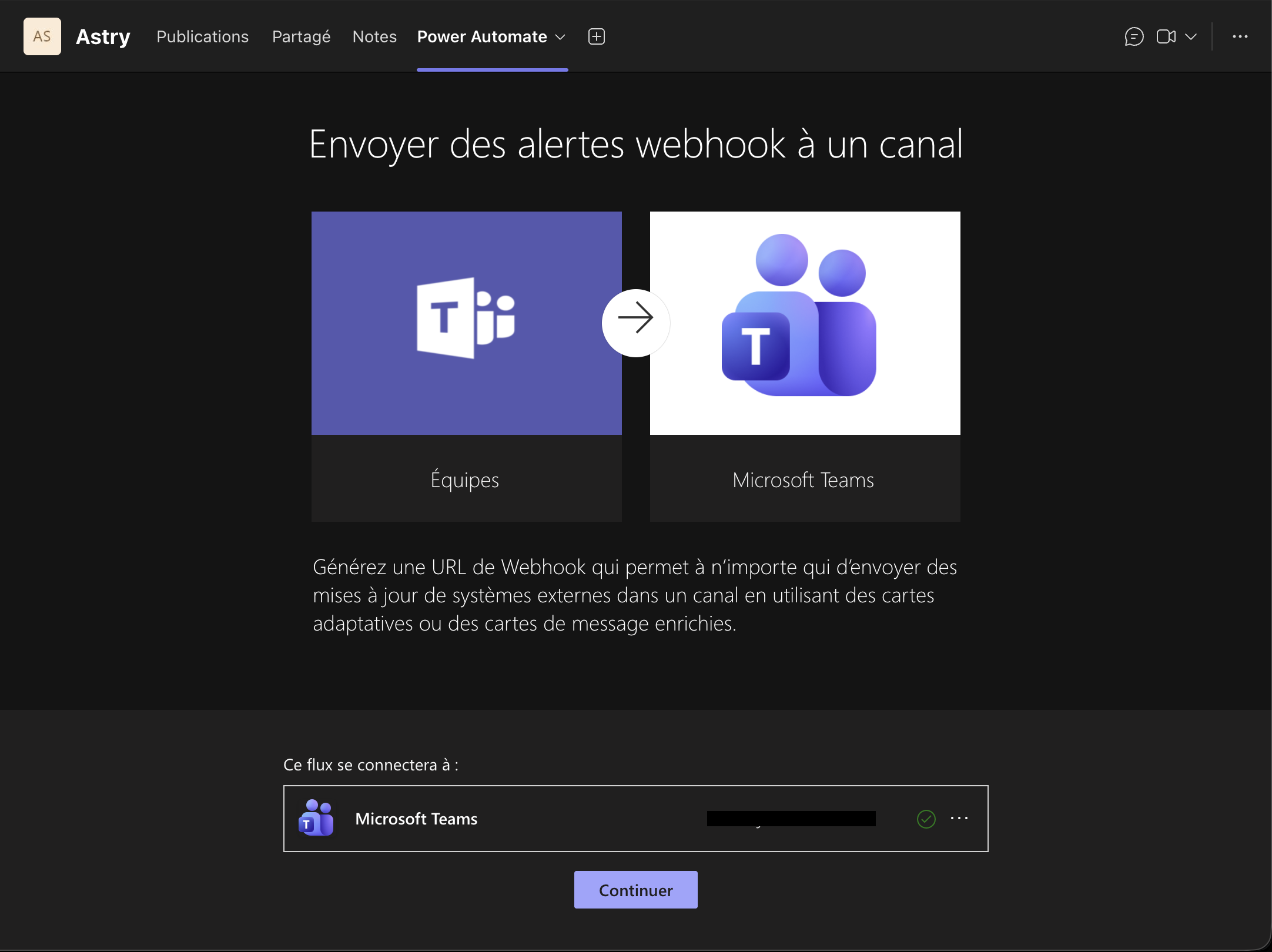
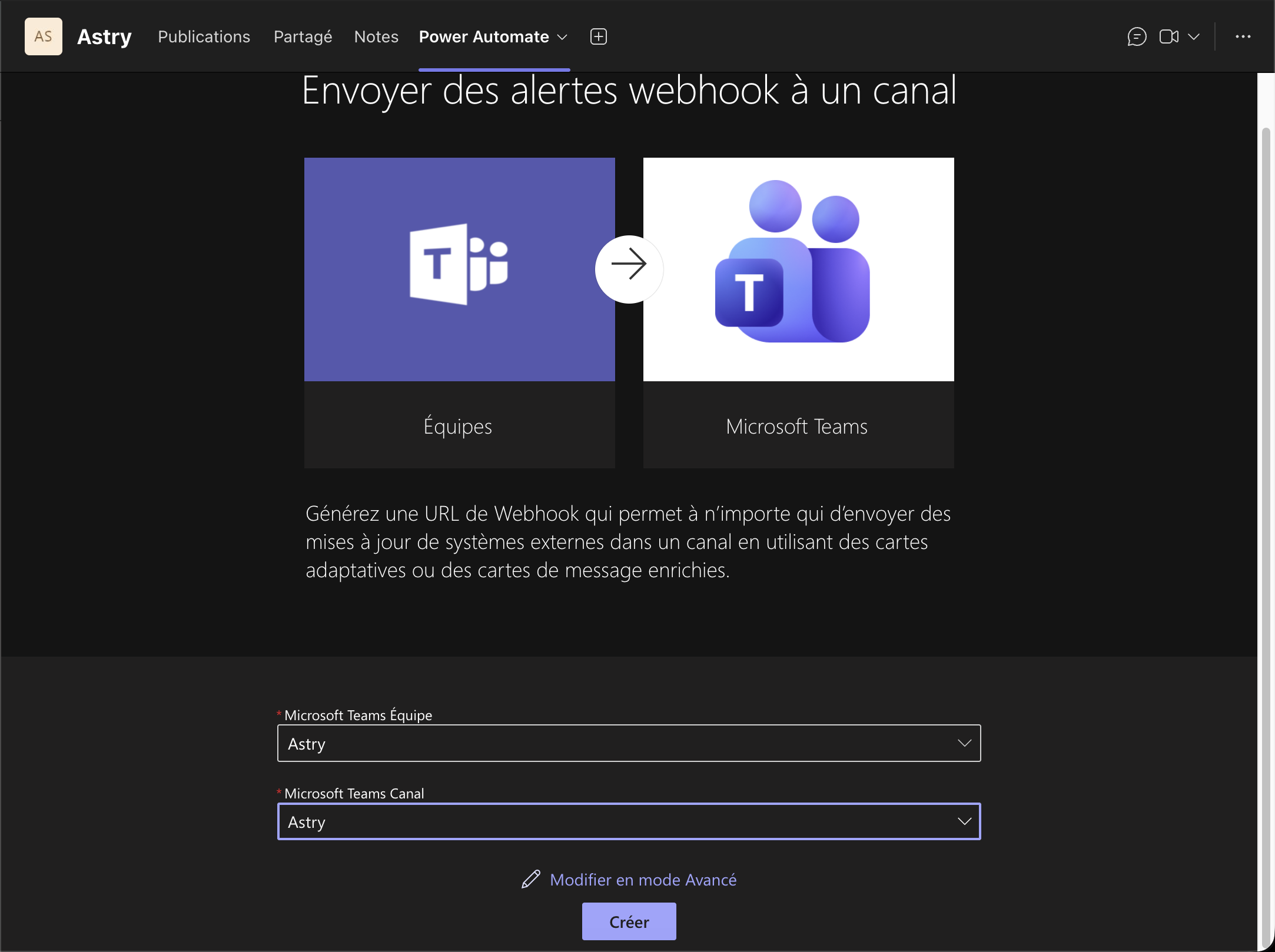
Select the desired team and channel.
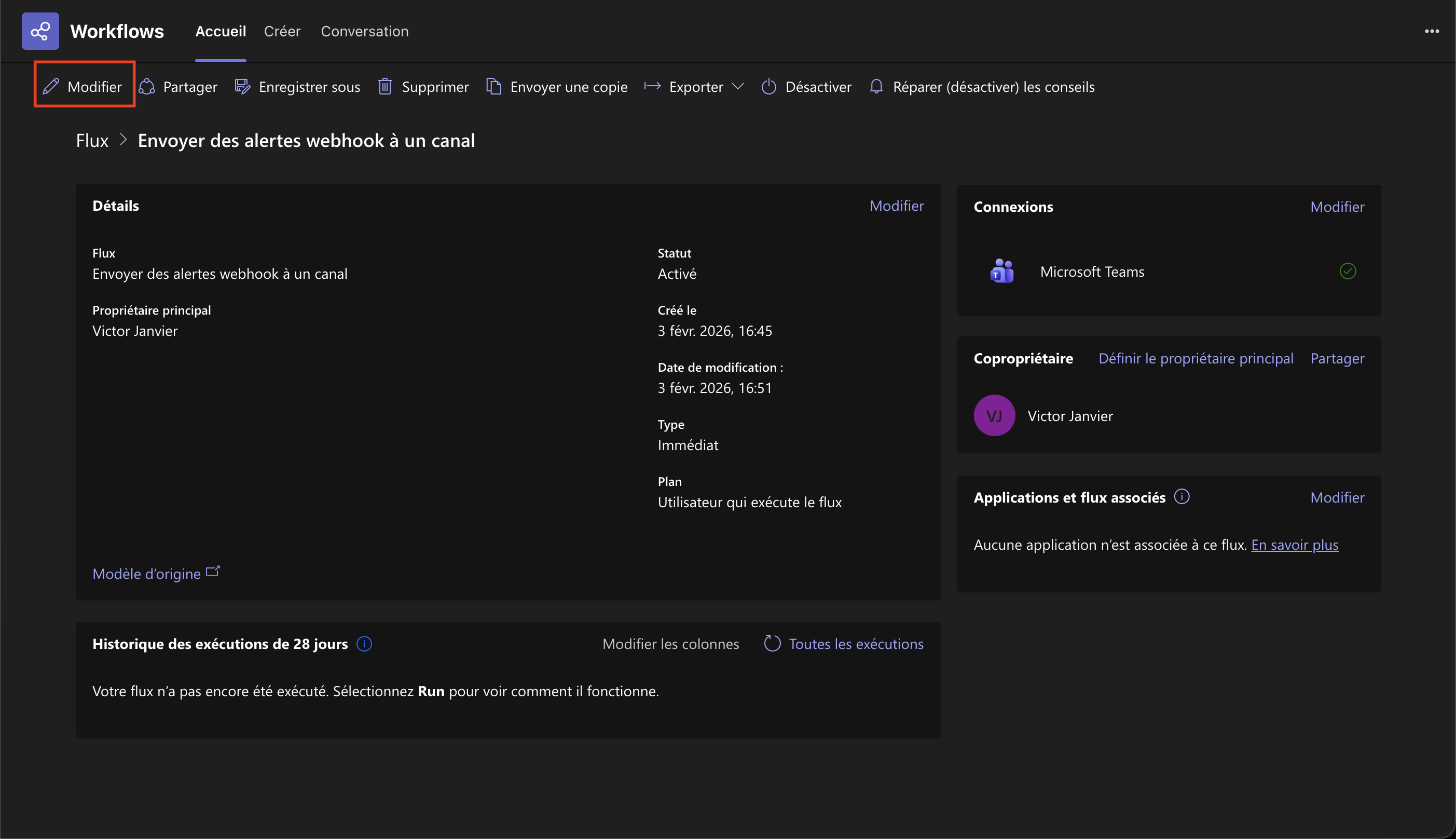
You'll land on the workflow configuration page. We'll now retrieve the Webhook URL. Click Edit.
Click When a Teams webhook is received.
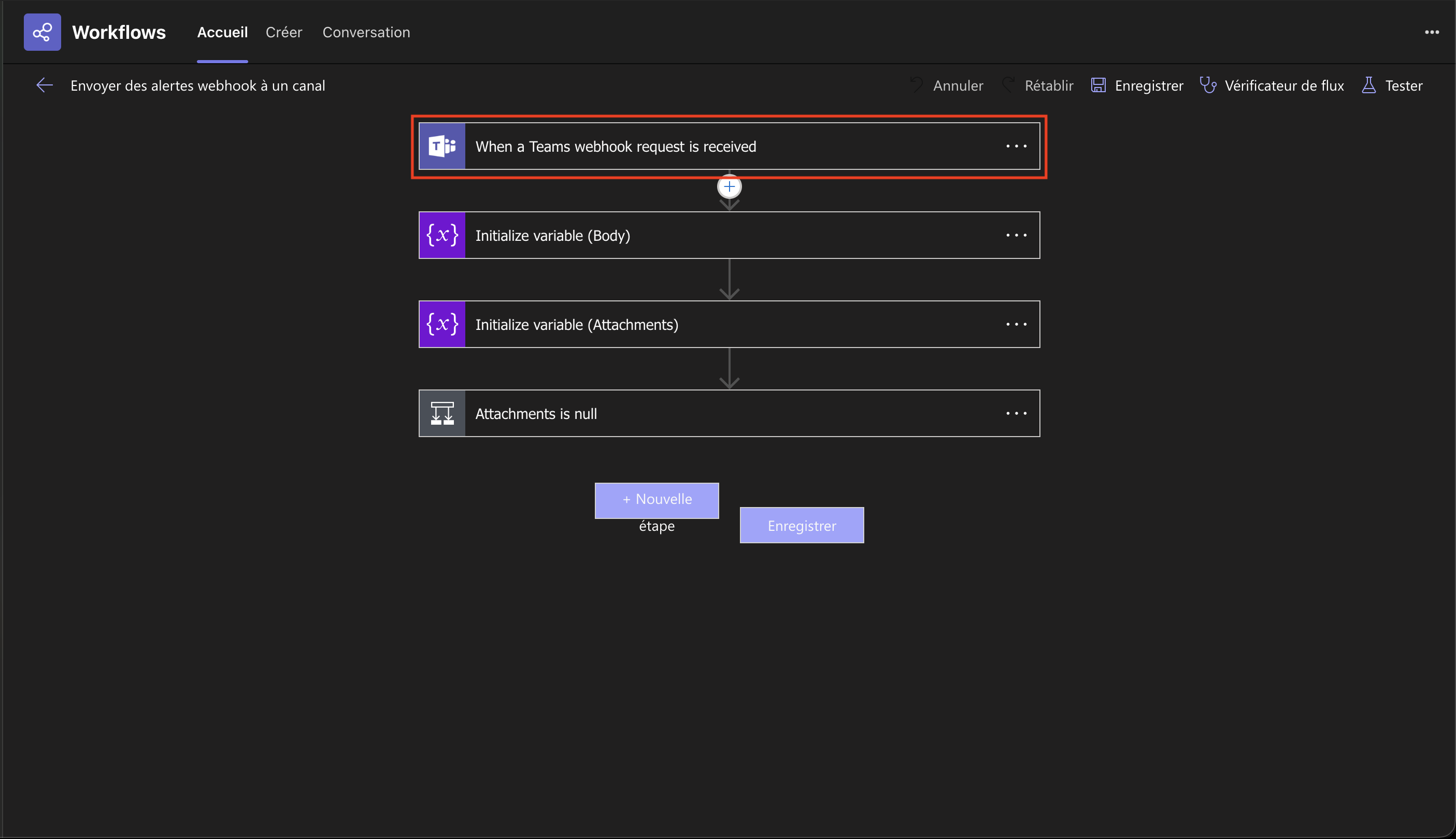
Copy the HTTP POST URL value, and you can then close the configuration menus.
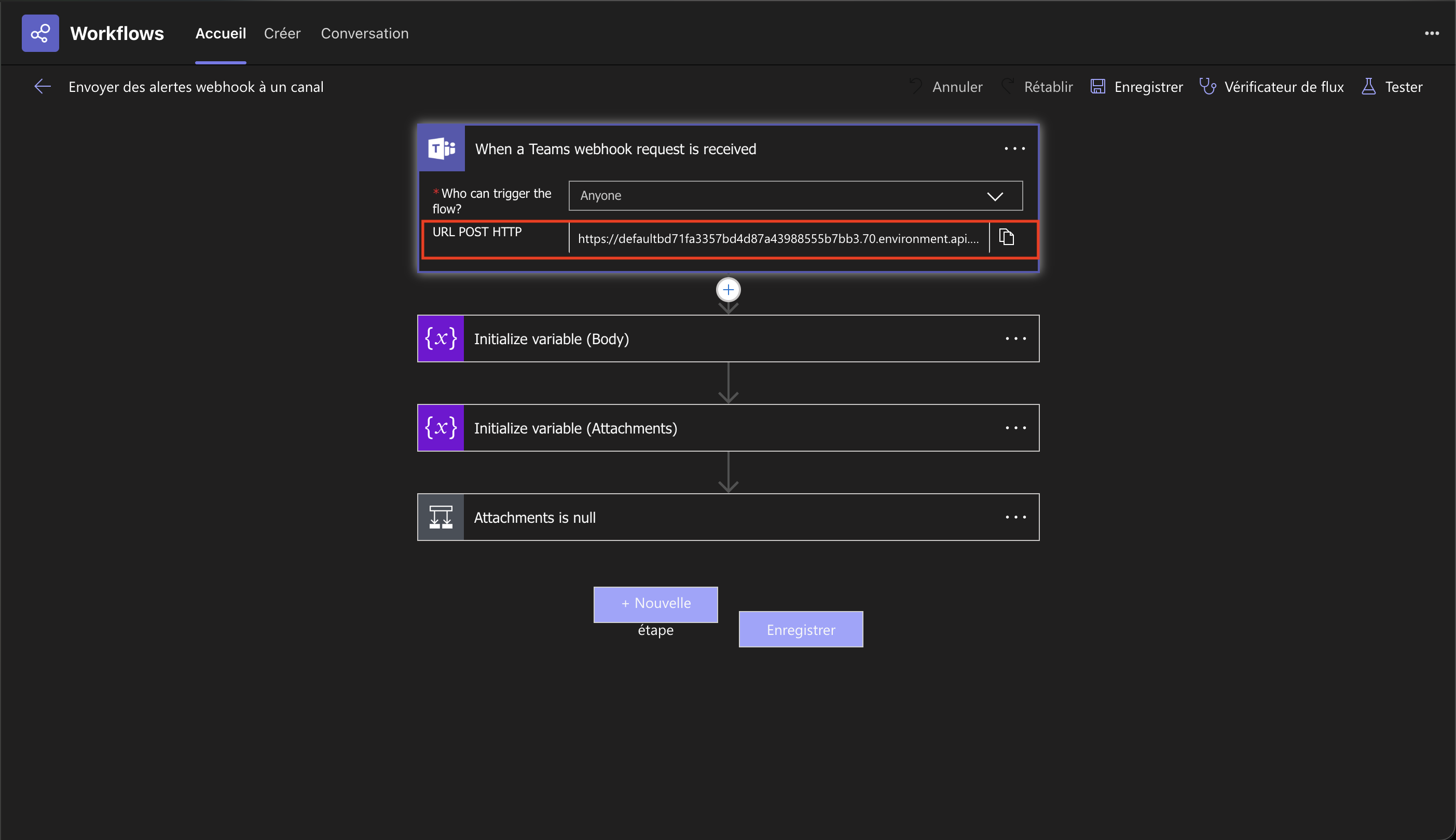
Note: If you want to find the Webhook URL again later, you can go back to the Workflows app via the side menu by clicking ..., then selecting Workflows.

Configuring Astry with the Teams Webhook
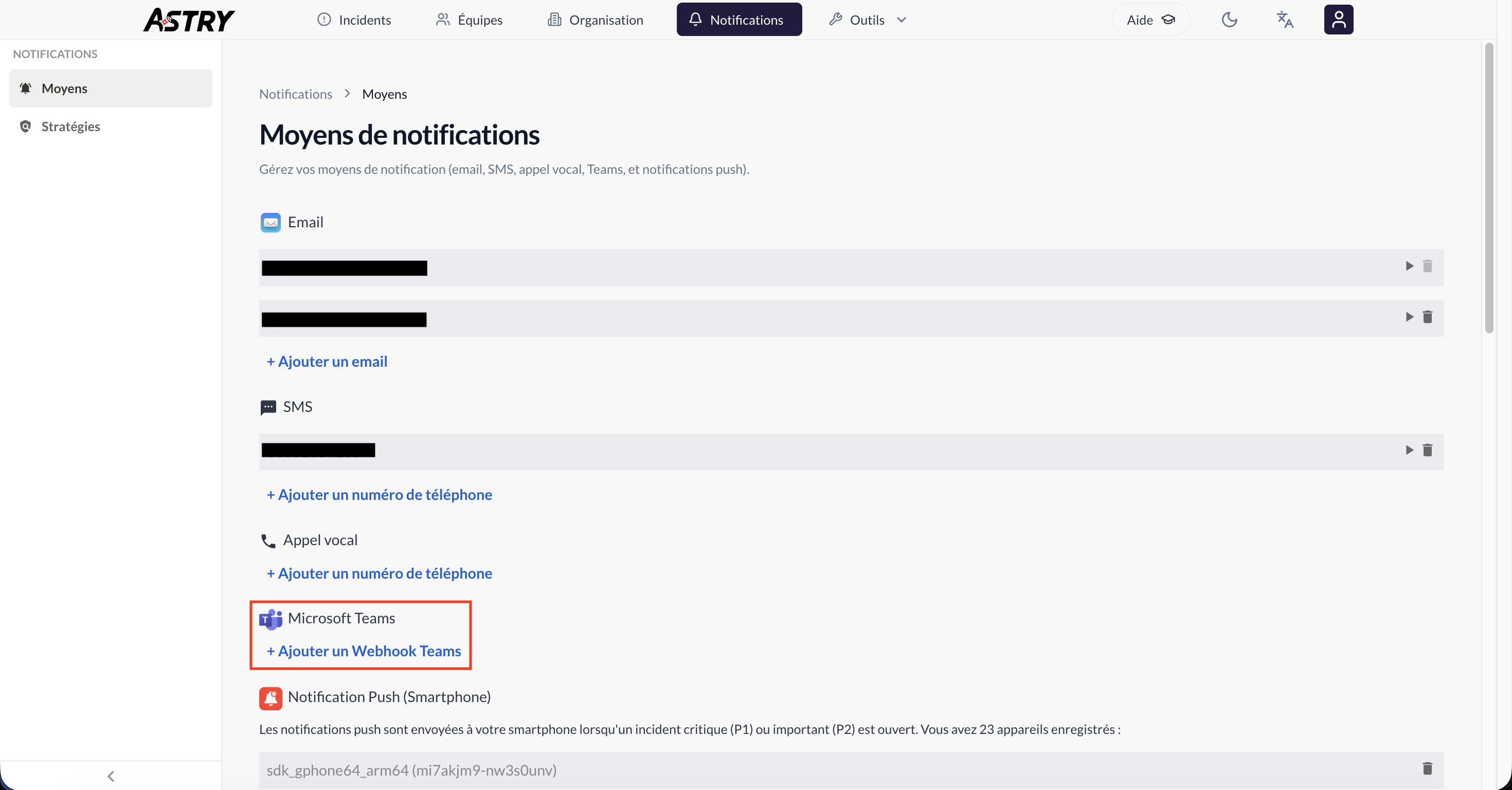
Go to the main Reach out tab, then Methods, and click + Add a Teams Webhook.
Enter the notification's name and paste the Webhook URL you copied earlier.
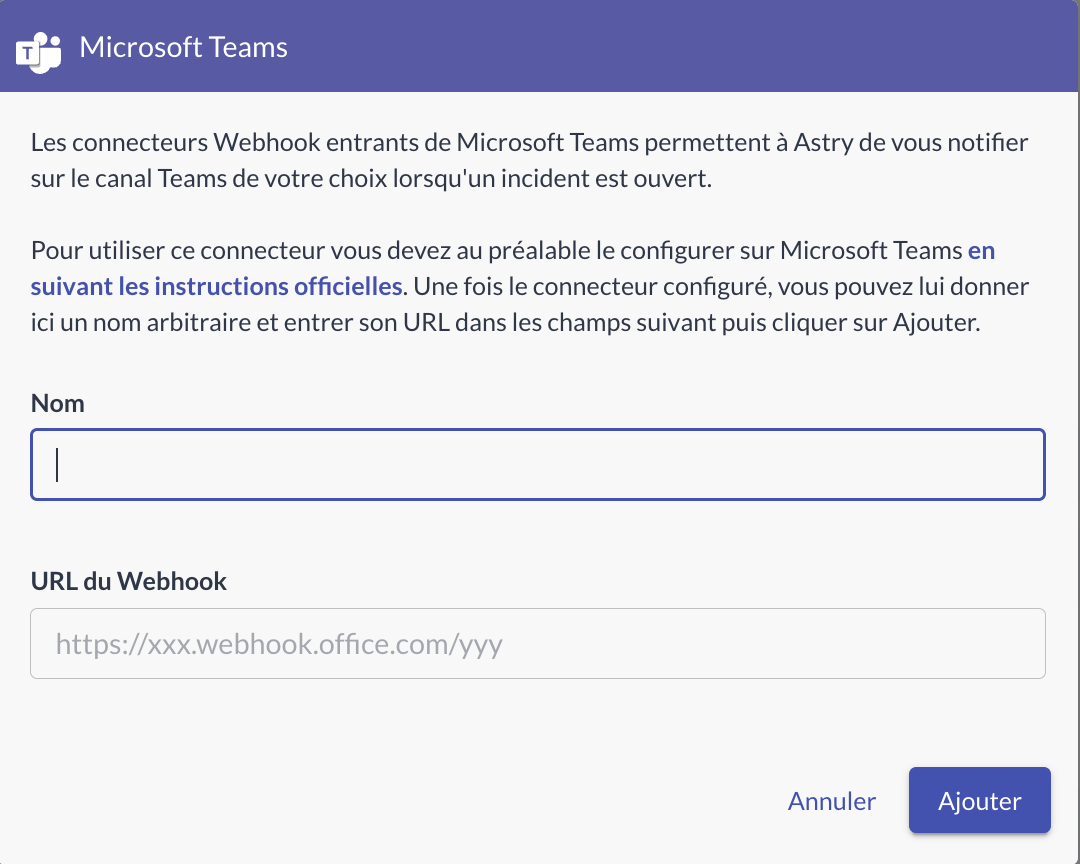
Click Add.
Testing the configuration
Still in the Reach out tab, then Methods, click the Test notification button of the Webhook you just added.

And if you go back to the channel/conversation for which you configured the Webhook, you should see the notification.
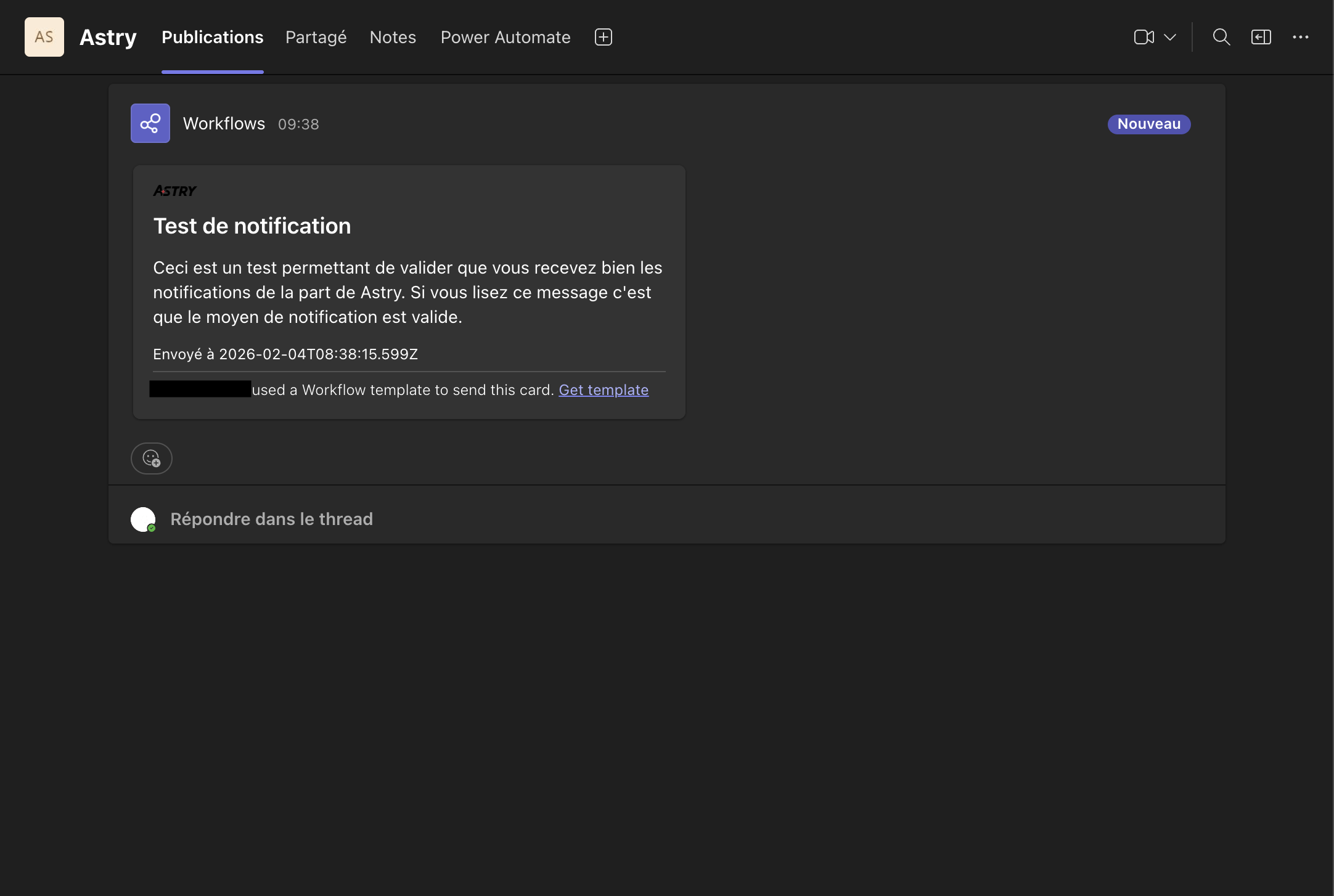
You've configured your Teams Webhook. Don't forget to configure your notification policy (main Reach out tab, then Policies) so that Astry notifies you via Teams.
Body of the message Astry sends to Teams
For reference, Astry sends this message body to Teams:
{
  "type": "message",
  "attachments": [
    {
      "contentType": "application/vnd.microsoft.card.adaptive",
      "content": {
        "$schema": "http://adaptivecards.io/schemas/adaptive-card.json",
        "type": "AdaptiveCard",
        "version": "1.4",
        "body": [
          { "type": "Image", "url": "...", "size": "Small" },
          { "type": "TextBlock", "text": "title", "weight": "Bolder", "size": "Large", "wrap": true },
          { "type": "TextBlock", "text": "body", "wrap": true },
          { "type": "TextBlock", "text": "timestamp", "weight": "Light", "size": "Small", "wrap": true }
        ]
      }
    }
  ]
}